

























A Shopify product feed reads your catalog straight from the store, so new arrivals and collection updates turn into posts without anyone retyping names, prices or links. You connect the store once, choose which products the feed carries, and send it to social, email or your blog. What it can't do well is react to stock the moment it changes, so this guide also covers how to stay inventory-safe.
This guide is about feeds that drive marketing posts. Google Shopping and Meta catalog feeds for ads are a different file with stricter rules, and the FAQ explains the difference.
What a Shopify product feed carries, and what it misses
A product feed is a list of your products in a format other tools can read. Each item usually holds a title, a link, a description, images and a price. When you add a product in Shopify, it shows up in the feed on the next refresh. That is the "self-updating" part.
Most marketing tools build the feed through Shopify's Storefront API, a GraphQL API with one versioned endpoint. Shopify lets apps read products and collections, blogs and articles without a token. Product tags, metafields, menus and customer data need a token.
Shopify also serves a basic Atom feed for collections. Add .atom to a collection URL, such as /collections/all.atom for the whole catalog, and an RSS reader can load it without a token, as TrackMage's setup guide shows. Shopify doesn't document it as a feed product, so test it on your own store first. For other sites, see how to find an RSS feed URL.
The gap is timing. Feed tools take a snapshot of the catalog on a schedule. If a product sells out between two snapshots, the feed still lists it until the next refresh, and a post already in the queue may still go out. Plan for that before you schedule anything.
Which product feed automation setup fits each marketing use?
Pick the feed shape before you connect anything. One store can run several feeds, one per job.
| Marketing use | Feed setup | Good destination |
|---|---|---|
| New-arrival posts | All products, newest first | Social, Telegram |
| Collection spotlight | One collection | Social, email |
| Weekly digest | One collection or all | Email digest |
| Blog roundup | One collection | WordPress, Blogger |
| Promote store blog | Blog articles | Social, email |
| In-stock only | Automated collection | Any |
The last row uses a Shopify collection that only holds products with stock, and the setup is covered further down.
How to set up a Shopify product feed in 5 steps
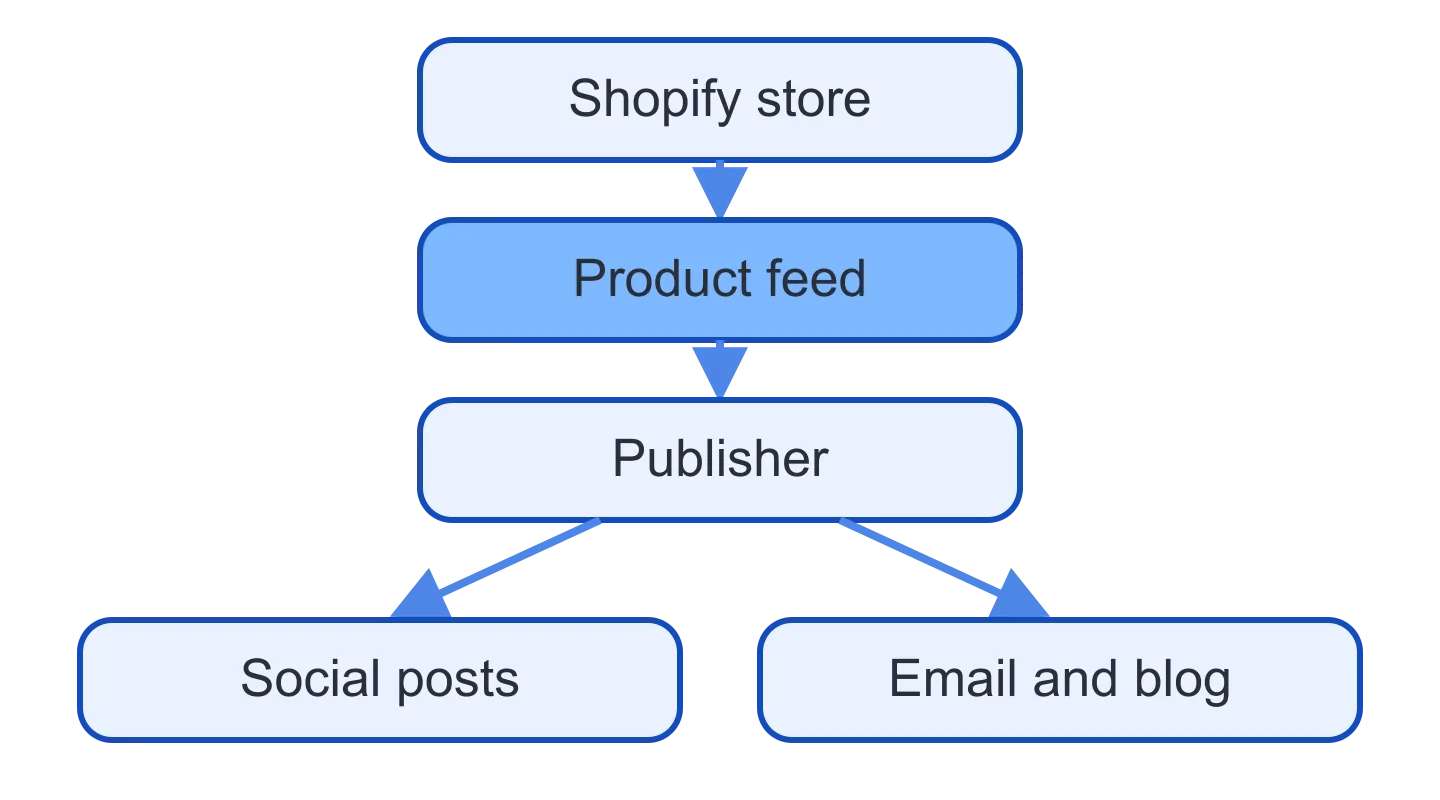
The flow is the same in most tools. Shopify gives you a token, the tool turns your products into a feed, and a publisher posts items from that feed to each channel.
1. Create a Storefront API access token
Shopify issues Storefront API tokens through the Headless sales channel. Per Shopify's getting-started guide, you install the Headless channel from the Shopify App Store, then click Create storefront. That generates a public and a private access token.
The two tokens do different jobs. According to the Storefront API docs, public tokens are meant for browsers and mobile apps and are visible to buyers. Private tokens are for server-side code and stay secret. Use whichever one your feed tool asks for.
Next, open the storefront in the Headless channel, find Storefront API permissions, click Edit and turn on what the feed needs. Shopify notes that permissions are shared across all storefronts in the channel.
⚠️ Deleting a storefront invalidates its tokens, and Shopify says you can't undo it. Any feed that uses those tokens stops working.
2. Check which products are live
Start with product status. Shopify's product status reference says Draft and Archived products are unavailable to customers on sales channels and apps. An Active product "can be published to sales channels," which means Active alone doesn't publish it anywhere.
Shopify's products query reference doesn't say which channel publications the Storefront API respects. So test it in your own store. Publish a product to the Headless channel, then check whether it appears in the feed preview in step 5.
3. Connect the store to your feed tool
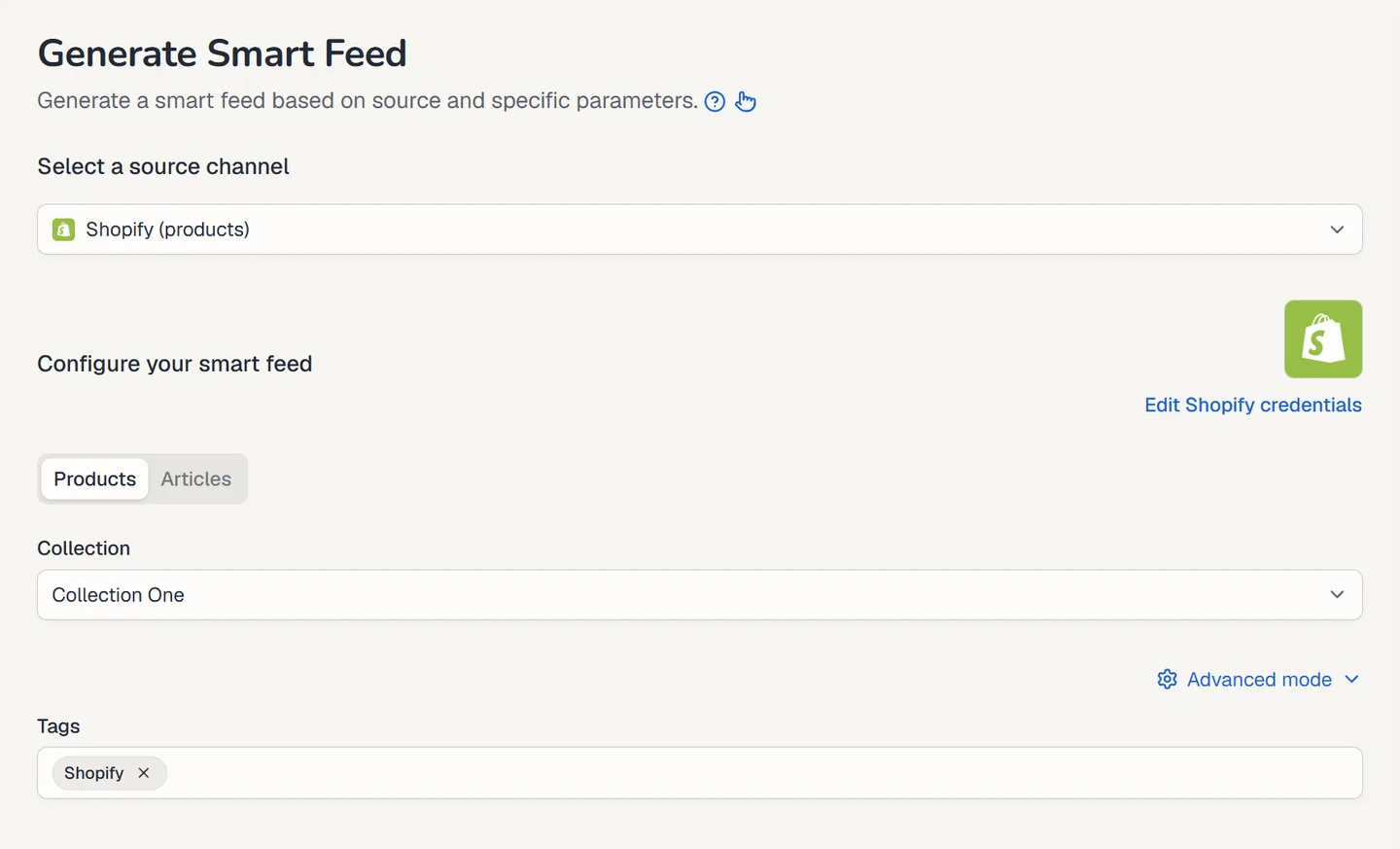
Paste the store URL and the token into your tool. In Feedigy, for example, you pick "Shopify (products)" as the Smart Feed source, enter the yourstore.myshopify.com address and the public access token, and save the connection to reuse for more feeds.
4. Choose products, one collection or blog articles
Match this choice to the table above. "All products, newest first" is the right base for new-arrival posts. A single collection keeps a feed focused on one campaign, season or product line. Blog articles turn your store's blog into a second content stream.
5. Check the preview, then send it to channels
Look at a few items before anything goes live. Check that titles read well, images load, prices show the right currency and links open the product page.
Then connect the feed to each destination. Give every channel its own posting rules: how often to post, how many items per run and which keywords to include or skip. For captions that don't sound like a bot pasted them, see our guide on auto-posting RSS to social media. Product feeds have the same problem.
How do you keep posts inventory-aware?
No snapshot feed knows your live stock count. You can still keep sold-out items out of your posts with a few Shopify settings and a review habit.
- ✅ Build an automated collection for in-stock items. Shopify's automated collection conditions include an "Inventory stock" rule, such as "Inventory stock is greater than 0." Point the feed at that collection instead of all products.
- Know how that rule matches. Shopify counts a product as matching when any one of its variants meets the condition, so a shirt with one size left stays in the collection.
- Move products you won't restock to Draft or Archived. Shopify says those statuses make a product unavailable to customers on sales channels. Then confirm the item leaves your feed preview after the next refresh.
- Review launch and sale posts before they go out. A risk-tiered review workflow lets you spot-check routine new arrivals and give promos a full review.
- ❌ Don't write "only 3 left" or "back in stock" into feed-driven captions. The feed has no stock numbers to back that up.
Shopify's help page doesn't say how fast a product leaves an automated collection once it stops matching. Test it with one product before you rely on it for a big launch.
Troubleshooting a Shopify product feed
The connection fails
Check the store domain first. Feedigy, for example, asks for the myshopify.com address. Then check that you pasted the token type your tool expects, since public and private tokens use different request headers. If someone deleted the storefront in the Headless channel, its tokens no longer work, so create a new one.
Products are missing from the feed
Open the product in Shopify and check its status. Draft and Archived products should not appear. If it's Active, check which sales channels it's published to. Also check the permissions on the storefront token. Some tools also cap how many products they read per refresh, so very large catalogs may need a collection-based feed.
A sold-out product still got posted
💡 The post likely went out between two refreshes, or it was already queued. Switch that feed to an in-stock automated collection, lower the posts per run, and review promo posts by hand.
The same product keeps posting
Your tool may be treating each refresh as new items. Look for a setting that tracks items by product ID or blocks duplicates. Without one, an edited product can post a second time.
Questions about Shopify product feeds
Is a Shopify product feed for posts the same as a Google Shopping feed?
No. Ad platforms need feeds with set fields in a format they define. Google's product data specification, for example, requires availability for every item and a GTIN for products that have one. A marketing feed only needs what a post shows: title, link, image and price. Use a feed app built for the ad platform for ads, and a marketing feed for posts.
Does Shopify have a built-in product feed?
Yes, a basic one. Adding .atom to a collection URL returns an Atom feed of that collection, as TrackMage describes. Shopify doesn't document it as a feed product, so check what it returns on your store before you rely on it.
Do I need a Storefront API access token for a product feed?
Not always. Shopify allows tokenless access for products, collections, blogs and articles, while tags and metafields need a token. Some feed tools, Feedigy included, still ask for a token, which ties the feed to a storefront with set permissions.
Can a Shopify product feed post restock or sold-out alerts?
A snapshot feed can't do this reliably, because it doesn't know when stock changes. Restock alerts need a tool that watches inventory events, such as a back-in-stock app. Use the product feed for new arrivals, collections and digests.
How often does a product feed update?
It depends on the tool. Each tool fetches the catalog on its own schedule, and new products appear after the next fetch. Check the refresh window before you schedule time-sensitive posts.
Should I use the public or private Storefront token?
Shopify describes public tokens as visible to buyers and meant for browsers and mobile apps, while private tokens belong on servers. Give a tool the type it asks for. Never paste a private token into client-side code.
What is product feed automation?
It means a feed of your products drives posts, emails and blog updates on a schedule. You set the rules once, then review the output.
Run your Shopify product feed in Feedigy
Feedigy connects with your store URL and a Storefront API token and reads products or blog articles. It never writes to Shopify. You can choose all products (newest first) or one collection from a dropdown, then check a live preview before you generate the feed.
Each product becomes an item with its title, product URL, cleaned description, up to 10 images, lowest variant price with currency, vendor and an Add to Cart link. Feedigy reads up to 250 items per fetch, refreshes the catalog at most every 120 minutes, and updates existing items instead of duplicating them.
From there, Auto-Publishers post to Facebook Pages, X, LinkedIn, Instagram, Telegram, WordPress, Blogger, email digests or webhooks, with keyword filters and per-run limits. Feedigy does not track stock or send restock alerts, so pair it with the in-stock collection setup above.
Create a Feedigy account and connect your first Shopify product feed.