






















In a Markel Direct survey of 501 UK small business owners and tradespeople who use social media for their business, 76% said they spend time every week creating or editing social content. And 54% of all respondents put in one to three hours a week.
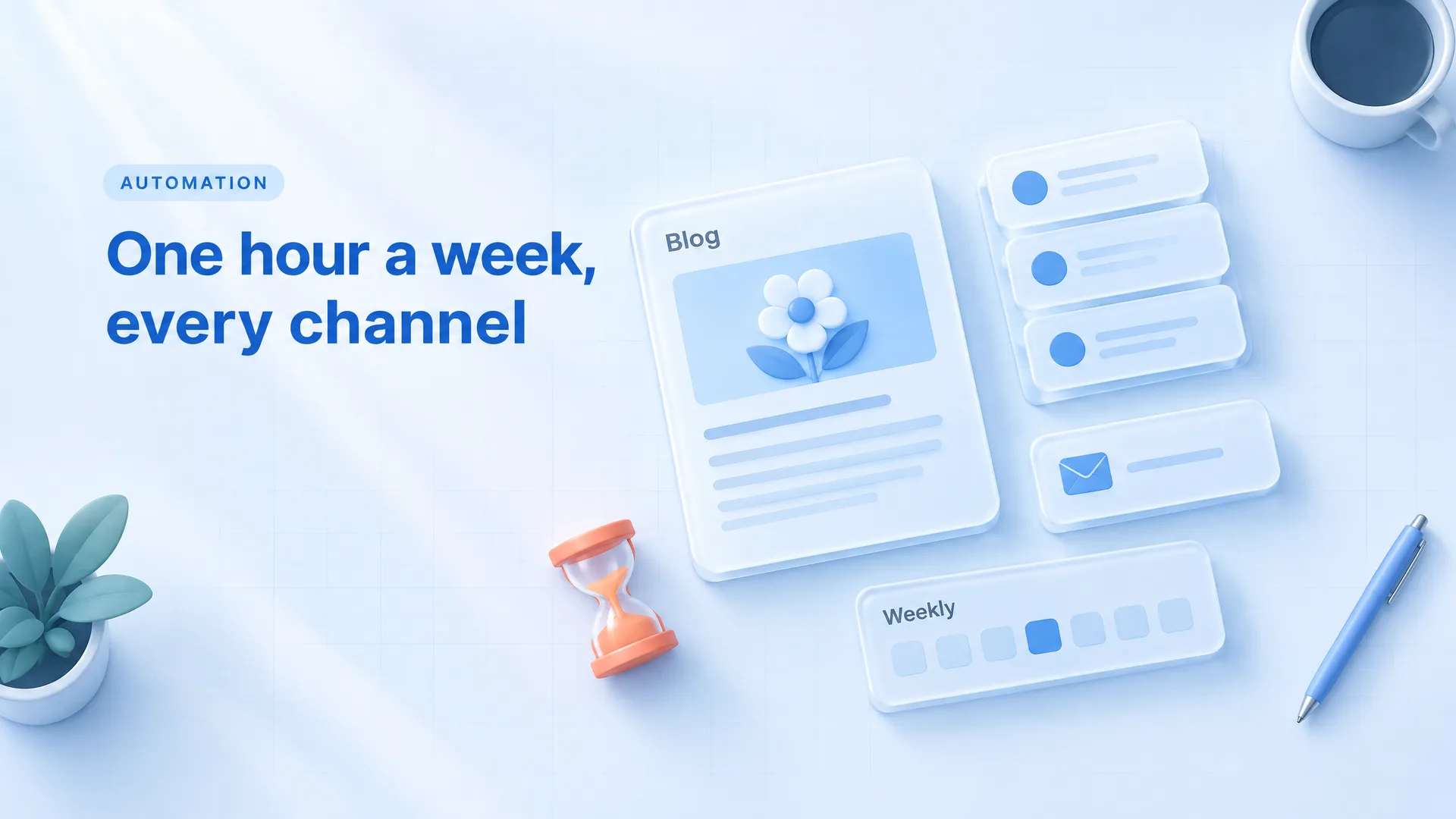
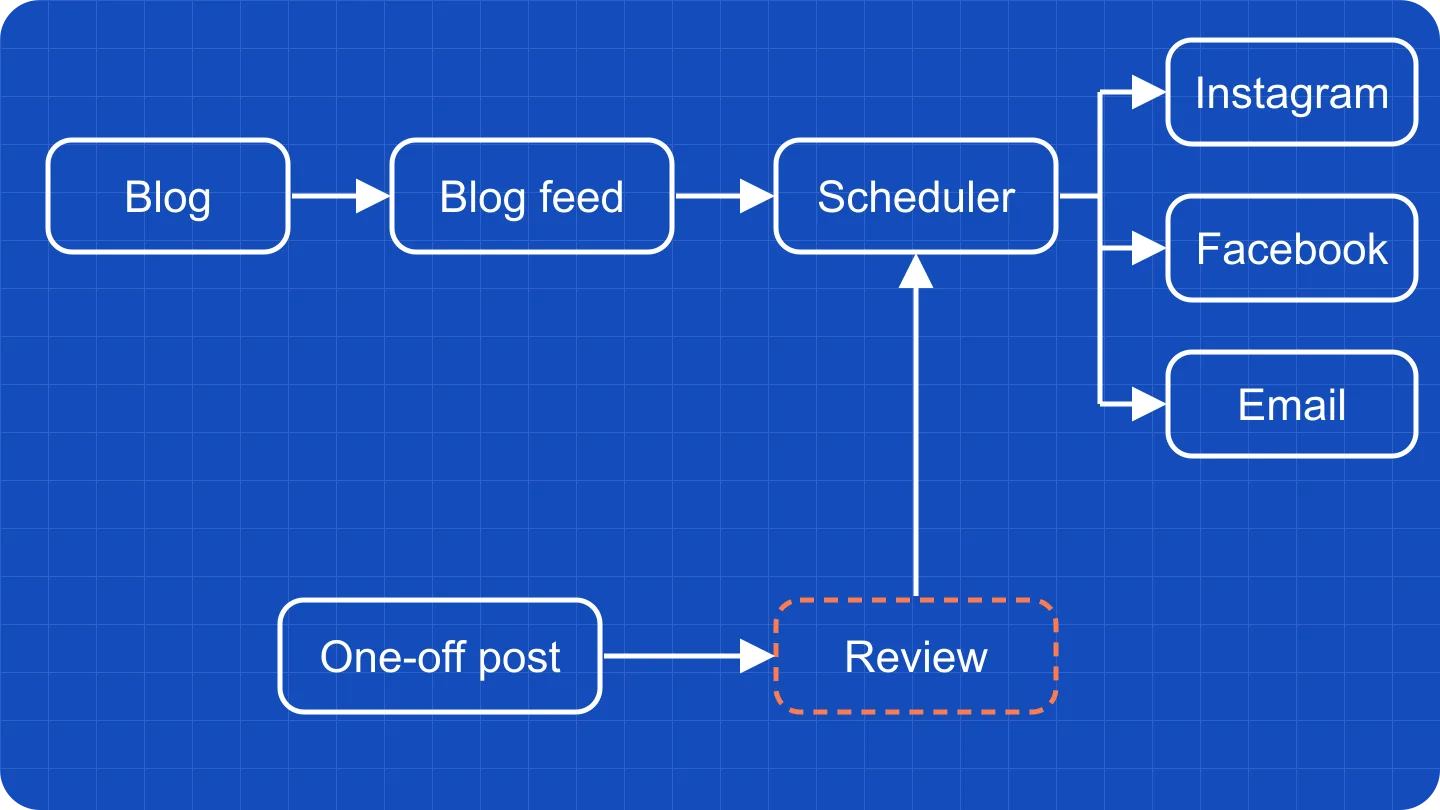
Social media automation for small business cuts the sharing part of that work down to a short weekly check. The lean version has three parts. You write once, on your blog. A scheduler sends each new post to your channels from the blog feed. And you budget about an hour a week to check the queue and handle the posts a person has to see first. Writing the blog and answering messages sit outside that hour.
Is social media automation for small business worth it?
Say you run a one-person flower shop. You have a blog with a post or two a month, an Instagram account, a Facebook page and a monthly email to past customers. Most mornings your hands are full of stems by 8am, and the phone stays face-down on the counter until lunch.
For an owner like that, posting by hand means opening three apps, rewriting the same news three times and remembering which channel got what. The Markel survey found over one in ten respondents (11%) spend between four and seven hours a week on content creation. The same survey found that 65% have never received any social media training, so most respondents had no training to lean on.
Automation is worth it when you already have something to say (blog posts, new stock) and the bottleneck is getting it onto each channel. It won't help if the problem is that you have nothing to post.

What to automate and what to keep by hand
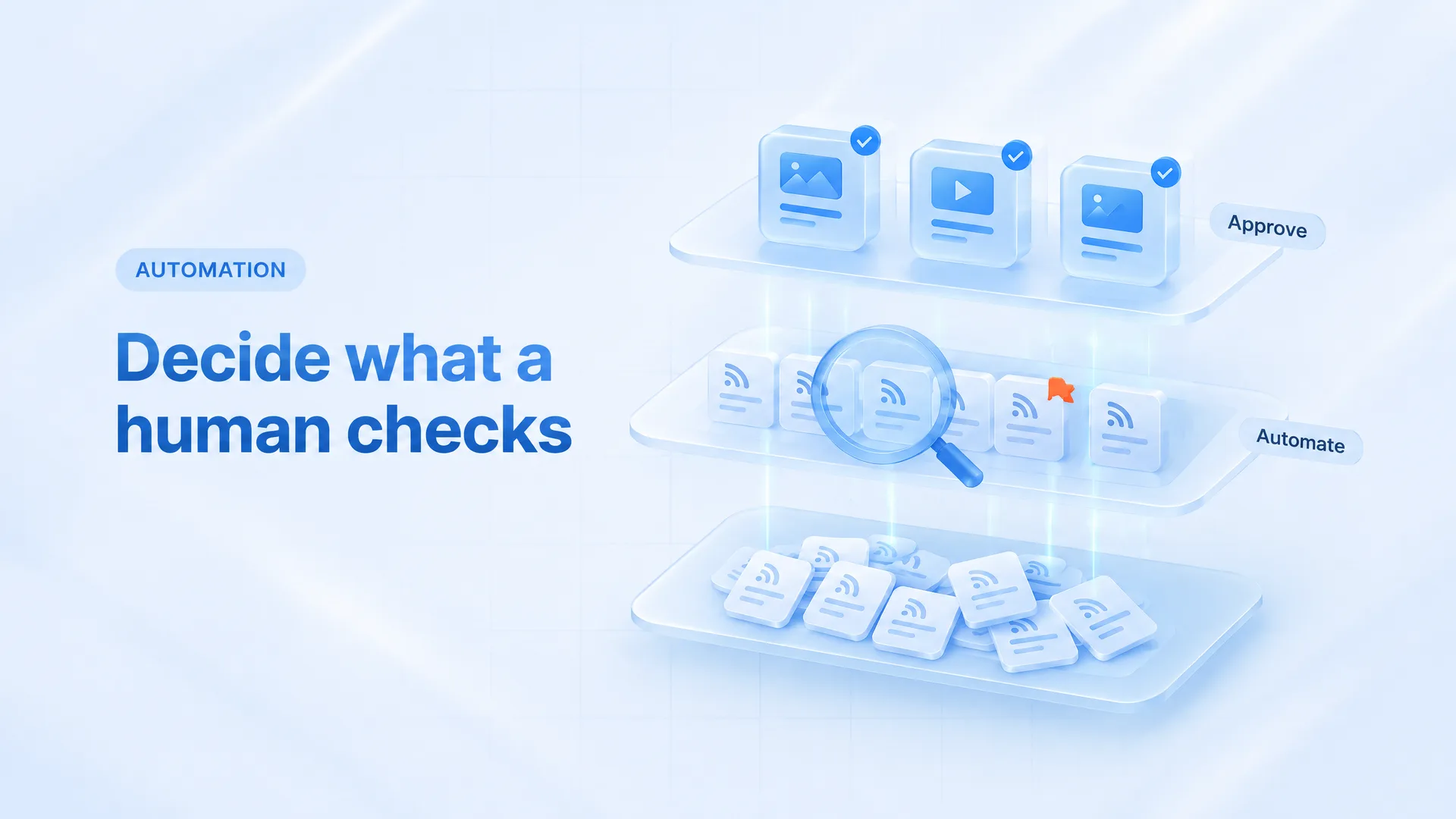
Automate the work that repeats with the same shape every time. Keep the work that needs a judgment call.
| Task | Automate? | Why |
|---|---|---|
| Sharing new blog posts | Yes | Same shape each time |
| Evergreen tips | Yes | Fine on any weekday |
| Monthly email digest | Yes | Pulls from the blog |
| Event or holiday hours | Review first | Dates can be wrong |
| Replies and DMs | No | Needs a person |
| Bad news or complaints | No | Tone matters |
The florist's blog posts (care guides and wedding write-ups) fit the top rows. A post saying the shop is closed on Monday for a funeral order does not.
The setup, built once
You build this once and then mostly leave it alone. Plan an afternoon for it.
- Find your blog feed. Many blog platforms publish an RSS feed, a machine-readable list of your latest posts. On WordPress it is usually your address plus
/feed. For other platforms, here's how to find an RSS feed URL. - Pick a scheduler that can read a feed. Some schedulers accept an RSS feed as a source and post each new item for you. One that only schedules posts you type in won't watch your blog.
- Set a template per channel. Facebook can take a title, a short line and the link. Instagram needs an image, so open your feed and check that each item carries one before you set up that channel. The monthly email can be a digest of that month's posts.
- Set posting times. Pick slots that match when your customers are around, and spread channels so the same post doesn't land everywhere in the same minute.
- Send one test post. Watch it arrive on each channel before you trust the schedule.
If the test post comes out wrong, the cause is usually upstream:
- No image: the feed item has none. Set a featured image on the blog post and check the feed again.
- Empty or cut-off text: the feed carries only a title or a short excerpt. Check your blog's feed settings for full text or a summary.
- Post refused: read the error your scheduler shows. A disconnected account or a channel rule (an image size, a text limit) is the usual reason. Fix it, then retry.
The template decides whether automated posts sound robotic. A bare title and link reads like a machine posted it, because one did. Compare these two Facebook posts from the same blog article:
❌ "New blog post: May Wedding Flowers. Read more: [link]"
✅ "Three May weddings, three very different bouquets. One cost half what the bride expected. The full write-up is on the blog: [link]"
The better version comes from the excerpt. Many blog platforms let you write a short summary for each post, and many feeds include it. Write that summary by hand, check that your scheduler's template uses it as the post text, and every channel reuses the line you wrote once. For more on this, see how to auto-post RSS to social media without looking robotic.
The one-hour weekly routine
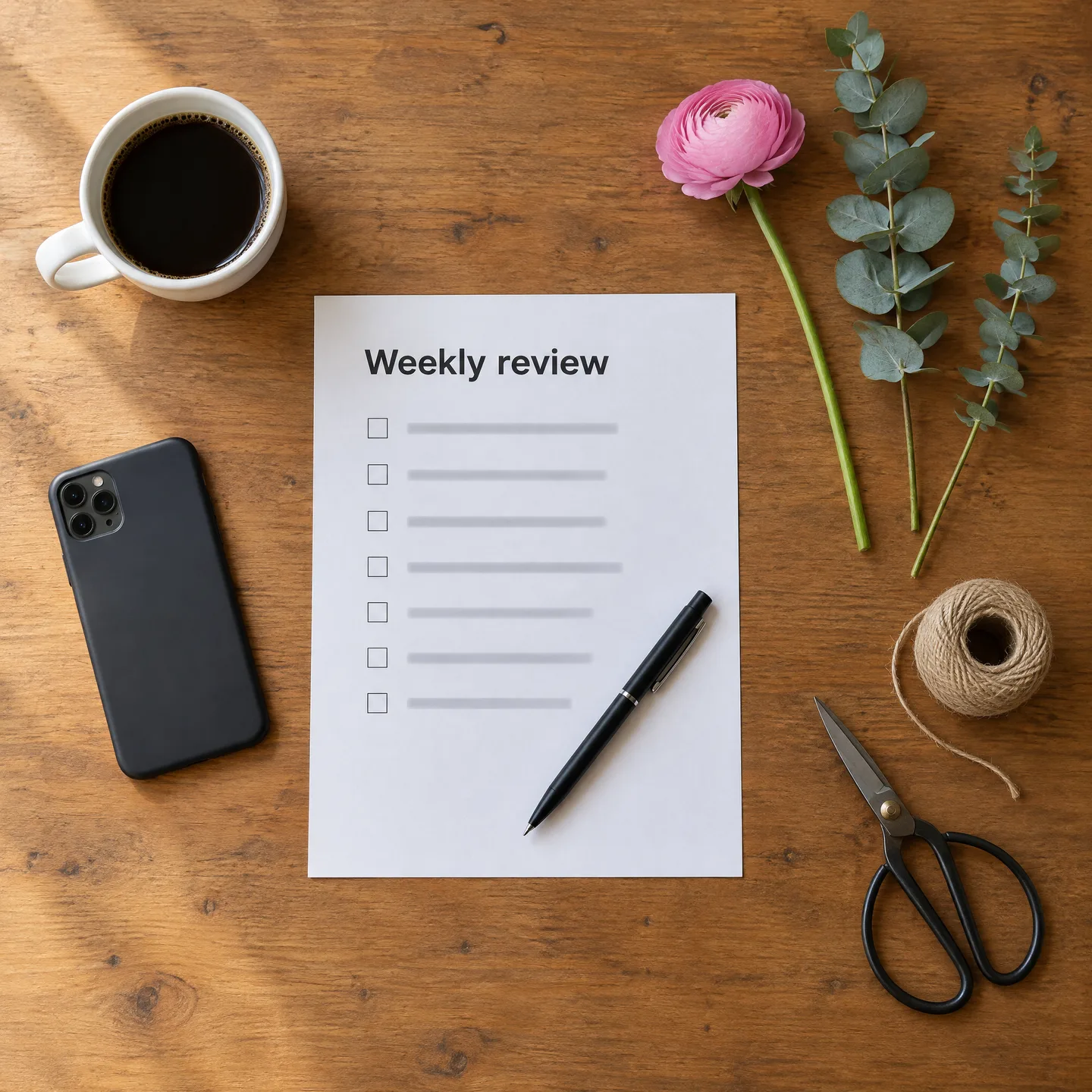
Once the setup runs, the week looks like this:
| Day | Task | Minutes |
|---|---|---|
| Monday | Check last week's posts went out | 10 |
| Tuesday | Write this week's one-off posts | 20 |
| Wednesday | Read the queue, cut anything stale | 15 |
| Friday | Review one-offs before they go live | 15 |
That adds up to 60 minutes. Replies to comments and messages sit outside it. Answer those as they come in, because a customer asking about Saturday delivery shouldn't wait for Wednesday.
On Monday, look for failures first. A post that didn't publish is easy to miss when you never open the channel. On Wednesday, the florist might find a "spring bouquets" post queued for the week the tulips sold out. Cut it or move it.
How much time does social media automation save?
It depends on where you start. If you're among the 54% spending one to three hours a week, this routine budgets one hour. If most of your time goes to writing original posts rather than sharing them, automation saves less, because the writing still has to happen somewhere. In this setup it happens once, on the blog.
What should a small business never automate?
Draw the line before you need it. Anything on this list waits for a person to read it, every time. That includes blog posts: the feed sends a new post out on schedule, so check the wording of a sensitive post before you publish it on the blog.
- ⚠️ Posts with dates, prices or opening hours. One wrong digit sends customers to a locked door.
- Anything about a complaint, a refund or a mistake the business made.
- Posts that mention a real customer, an event or a supplier by name.
- Anything timed around news, a local tragedy or a public holiday.
- AI-written captions on any of the above.
Everything else can go out on schedule, as long as you read the queue once a week. If you want a stricter way to sort posts into "send", "check" and "write by hand", our human-in-the-loop scorecard walks through review tiers.
When to add a no-code content automation platform
A scheduler covers the blog-to-channels path. A general automation platform like Zapier, Make or n8n makes sense when you need a step in between, such as adding new posts to a spreadsheet, alerting you in Slack or sending the post to a tool your scheduler doesn't support. Zapier, for example, has an RSS trigger for new items in a feed, so a new blog post can start any chain of actions you build.
The trade-off is upkeep. Each step is one more thing that can break, and you're the one who fixes it. A rough rule:
- One blog, three or four channels, posts in the same format each time: a scheduler is enough.
- Posts that need to go through other tools first, or channels your scheduler can't reach: add an automation platform for that one path.
What to stop doing
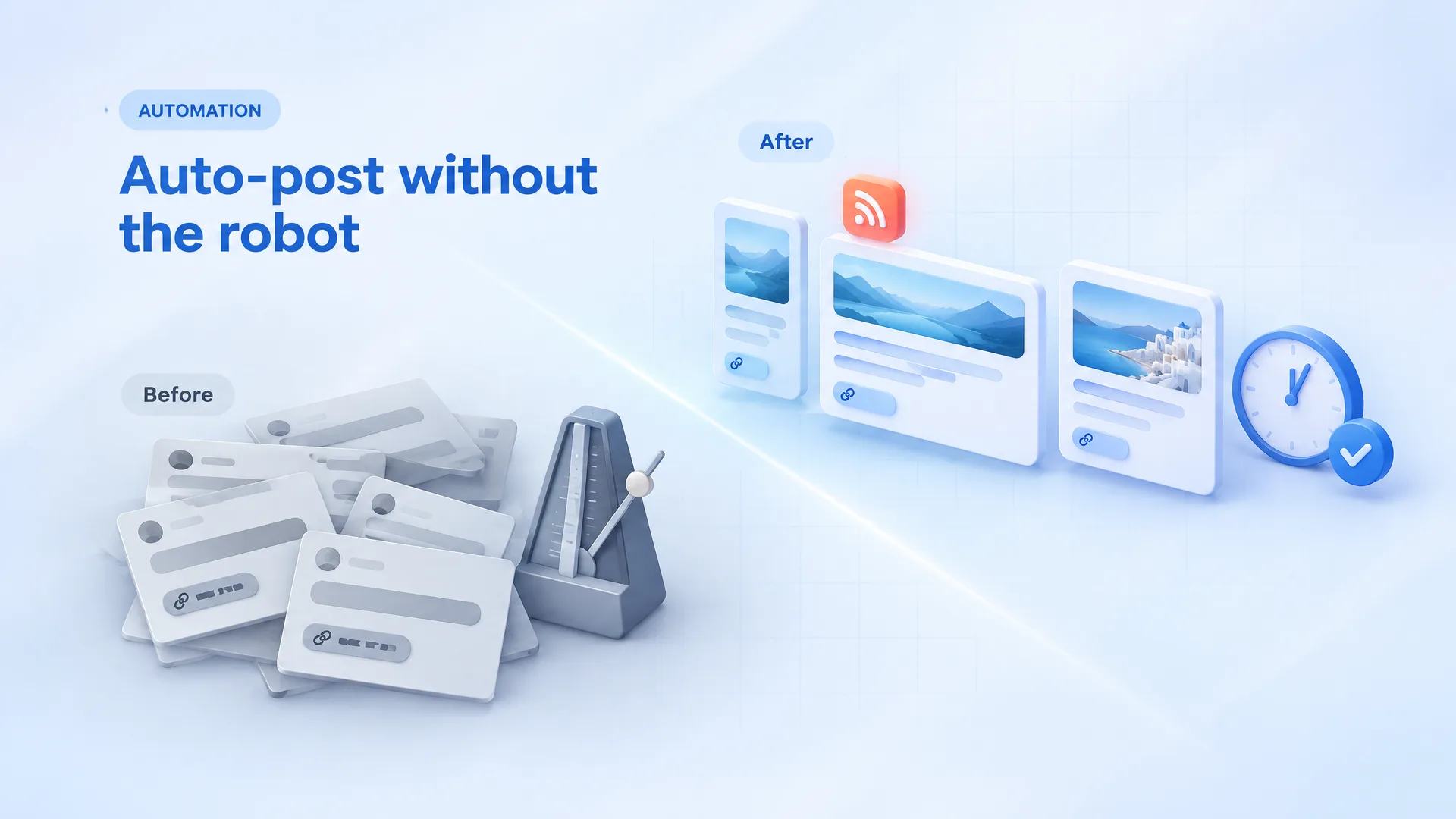
Stop rewriting the same news by hand for each channel. Write it once on the blog and let the templates adapt it.
Stop opening every app daily to check that things posted. The Monday check covers it.
And stop posting just to fill a slot. Good social media automation for small business leaves room for quiet weeks. A quiet week on Facebook costs less than a stale post about tulips you no longer have.
Running this setup in Feedigy
Feedigy can run this setup. You add your blog's RSS as an imported feed, then create an Auto-Publisher for each channel: a Facebook page, an Instagram Business or Creator account, an email digest and others. Each Auto-Publisher takes posts from up to 10 content feeds and publishes them on a schedule. You choose which template elements show (title, body, link, tags, images), and Posting-time spread moves each post a little before or after its slot.
Test Post sends one real post so you can check it, and the Activity Log shows what went out and any errors. The Calendar shows scheduled and published posts across channels, with filters for Failed and Missed, so the Monday check happens in one place. For one-off posts that need a look first, Channel posts let you save a draft and adjust the text per channel before it goes anywhere.
To try this setup with your own blog and channels, create a Feedigy account.