
CJ Affiliate feeds
Esta página aún no está disponible en tu idioma.
A CJ Affiliate feed is a smart feed of products from advertisers on CJ Affiliate (Commission Junction). Each product becomes a feed item with its image, name, price and an affiliate link that pays commission to you. Use it to share products from the brands you promote.
Before you start: connect your CJ account
Section titled “Before you start: connect your CJ account”Feedigy reads CJ with your own CJ credentials.
- In CJ, get your Personal Access Token, Company ID (CID) and Website ID (PID). See Get your CJ credentials.
- In Feedigy, open Generate smart feed, choose CJ Affiliate, and select Add new account….
- Enter the Personal Access token, the Company ID (CID) and the Website ID (PID).
- Select Connect. Feedigy checks the credentials with CJ.
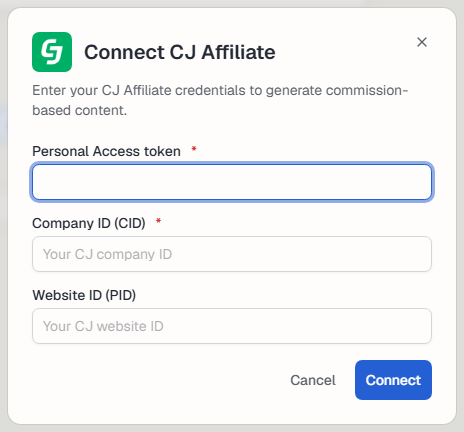
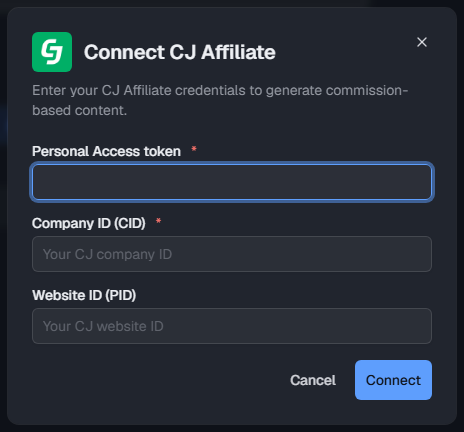
You can also connect it on the CJ Affiliate channel page. With more than one account, pick the one to use at the top of the form.
Get your CJ credentials
Section titled “Get your CJ credentials”Personal Access Token
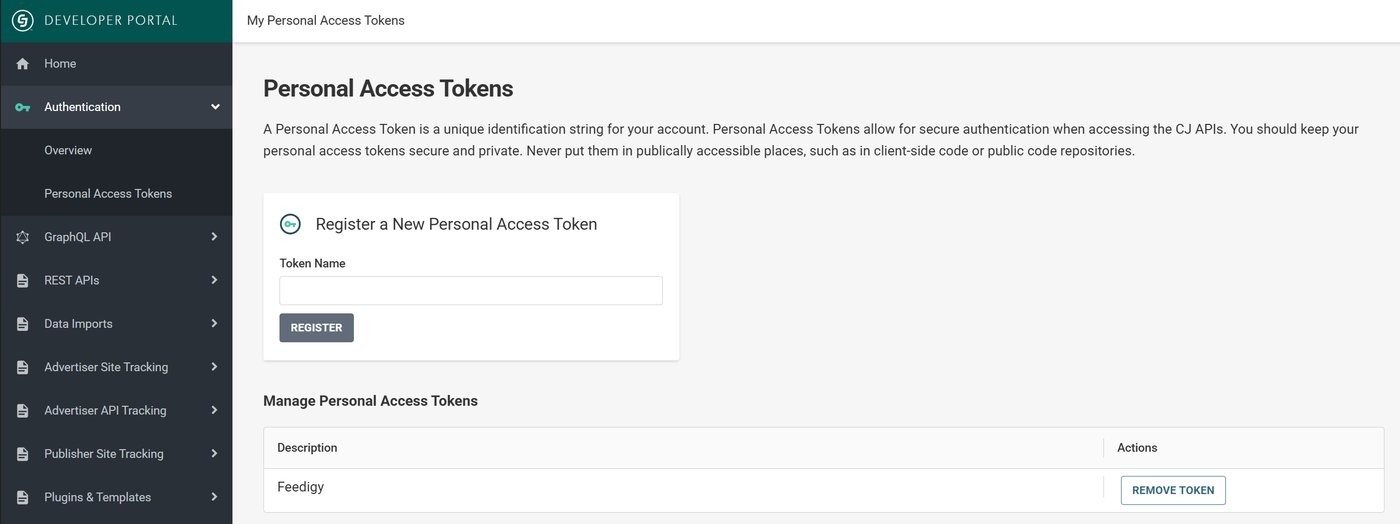
- Open the CJ developer portal and sign in. In the left menu, select Authentication, then Personal Access Tokens.
- Under Register a New Personal Access Token, type a Token Name, for example
Feedigy, and select Register. - Copy the token and keep it private.
Company ID (CID)
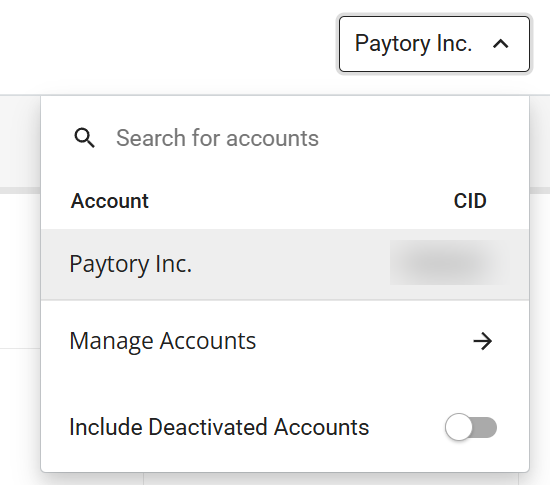
Open the company menu at the top right of any CJ page. The CID is the number next to your account name.
Website ID (PID)
- In CJ, select Account, then Promotional Properties.
- Find your website in the list. The PID is the number in the Property ID column. No property yet? Select Create property to add your website.

Create a CJ Affiliate feed
Section titled “Create a CJ Affiliate feed”- Open Content feeds in the sidebar, then Generate smart feed.
- In Select a source channel, choose CJ Affiliate.
- Type a keyword into Keywords and press Enter. Add up to 10. Each keyword becomes its own feed. Select a keyword to preview it.
- In Search in, choose My Advertisers (Active) for the advertisers you joined, or All advertisers.
- Check the products in Live preview on the right.
- Select Generate.
Products from advertisers you have not joined do not pay you commission until CJ approves you for that advertiser.
Advanced mode
Section titled “Advanced mode”- Negative keywords: skip products that contain any of these words (up to 10).
- Price range: only products in this price range.
- Currency: only products priced in this currency, or Any currency.
- Filter by advertiser IDs: only products from these CJ advertisers (up to 10 IDs).
- Sort by: Don’t sort, Price: low to high or Price: high to low.
- Tags: tags for the new feeds. See Tags.
After you generate
Section titled “After you generate”The new feeds appear on the Content Feeds page with the Smart type. Feedigy refreshes a CJ Affiliate feed at most every 2 hours, when the feed is read. To share the products on your channels, add the feed to an Auto-Publisher. Add an affiliate disclosure to the Auto-Publisher’s post template, for example “#Sponsored”.
Keep posting through busy weeks
Set sources, keywords and posting hours once. Feedigy posts to your channels while you work on other things.
No card required. The Free plan has no time limit.