
What are channels?
A channel is an account or service you connect to Feedigy. Feedigy uses it in one of two ways:
- A source channel brings content in. Smart Feeds read from it, for example new products from your Shopify store or new videos from YouTube.
- A destination channel receives what you publish. Auto-Publishers and channel posts send posts to it, for example a Facebook Page or a WordPress site.
Some platforms work both ways. Facebook, Instagram and X (Twitter) can be a source for Smart Feeds and a destination for your posts.
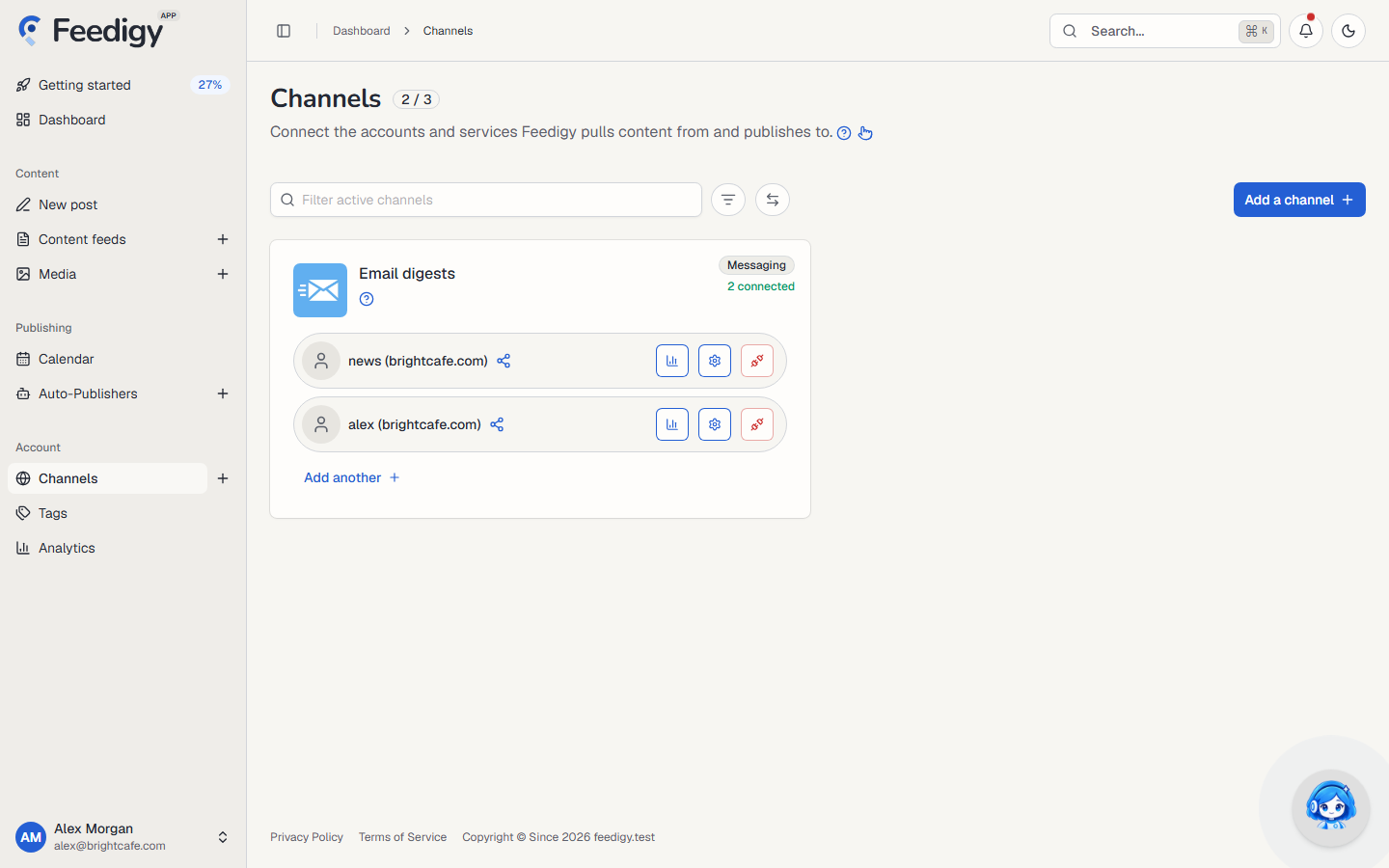
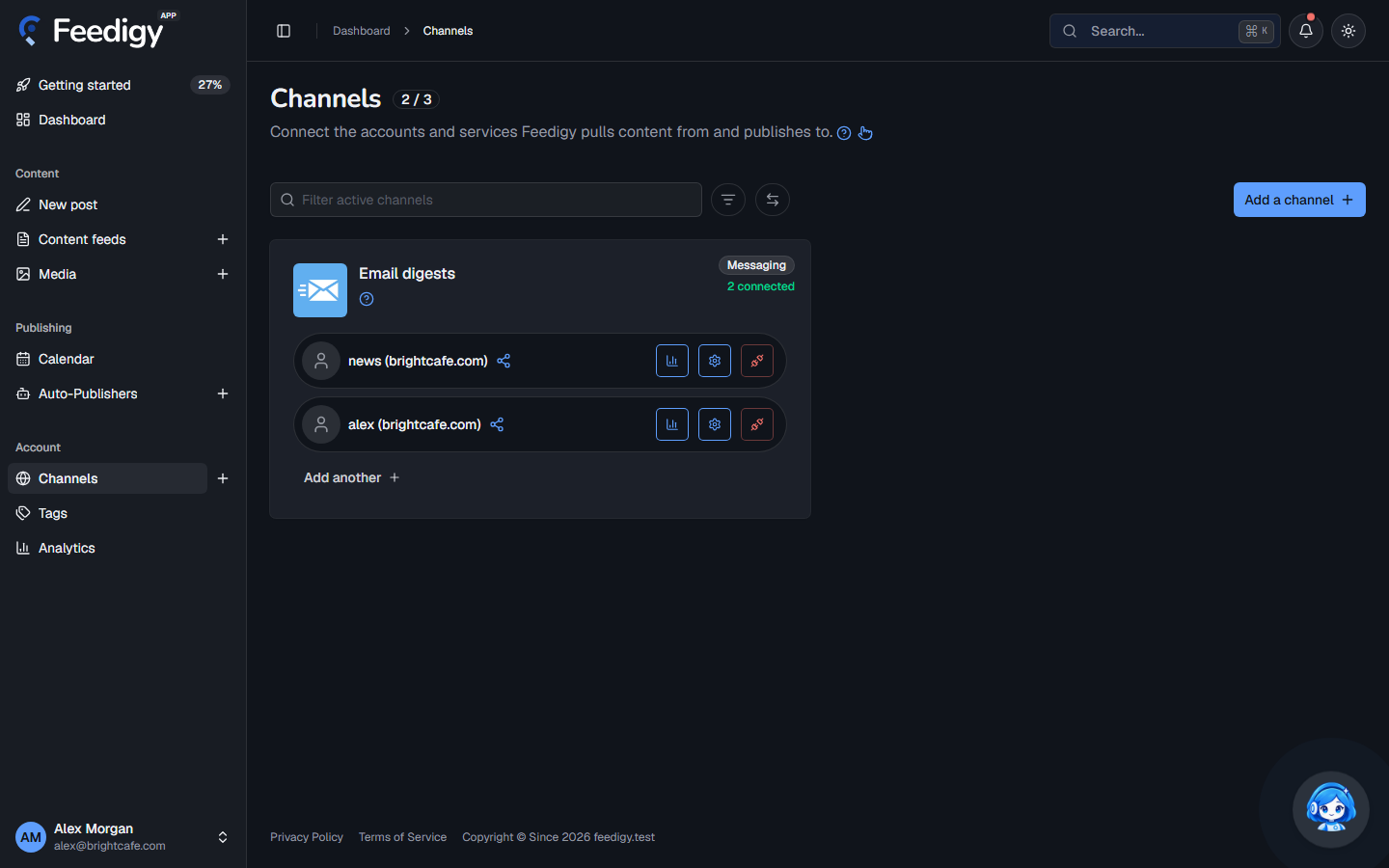
You manage channels on the Channels page under Account in the sidebar.
Which channels can I connect?
Section titled “Which channels can I connect?”| Channel | Source | Destination | Type |
|---|---|---|---|
| ✓ | ✓ | Social | |
| ✓ | ✓ | Social | |
| X (Twitter) | ✓ | ✓ | Social |
| ✓ | Social | ||
| ✓ | Social | ||
| Telegram | ✓ | Messaging | |
| Email digests | ✓ | Messaging | |
| WordPress | ✓ | Blogs | |
| Blogger | ✓ | Blogs | |
| Amazon | ✓ | e-Com | |
| Best Buy | ✓ | e-Com | |
| eBay | ✓ | e-Com | |
| ClickBank | ✓ | e-Com | |
| CJ Affiliate | ✓ | e-Com | |
| Shopify | ✓ | e-Com | |
| YouTube | ✓ | Media | |
| Vimeo | ✓ | Media | |
| Taddy (podcasts) | ✓ | Media | |
| The Guardian | ✓ | News | |
| NewsData.io | ✓ | News | |
| Automation platforms (webhook) | ✓ | Automation |
A channel appears in the Connect a channel panel only when it is available on your account. Each channel has its own page in this section with the details.
How do I connect a channel?
Section titled “How do I connect a channel?”- Open Channels and select Add a channel.
- The Connect a channel panel lists every channel you can connect. Search by name, or use the filter button to narrow the list by type (Social, Blogs, Messaging, e-Com, Media, News, Automation) or by direction (source or destination).
- Select a channel’s card and follow the steps for that platform.
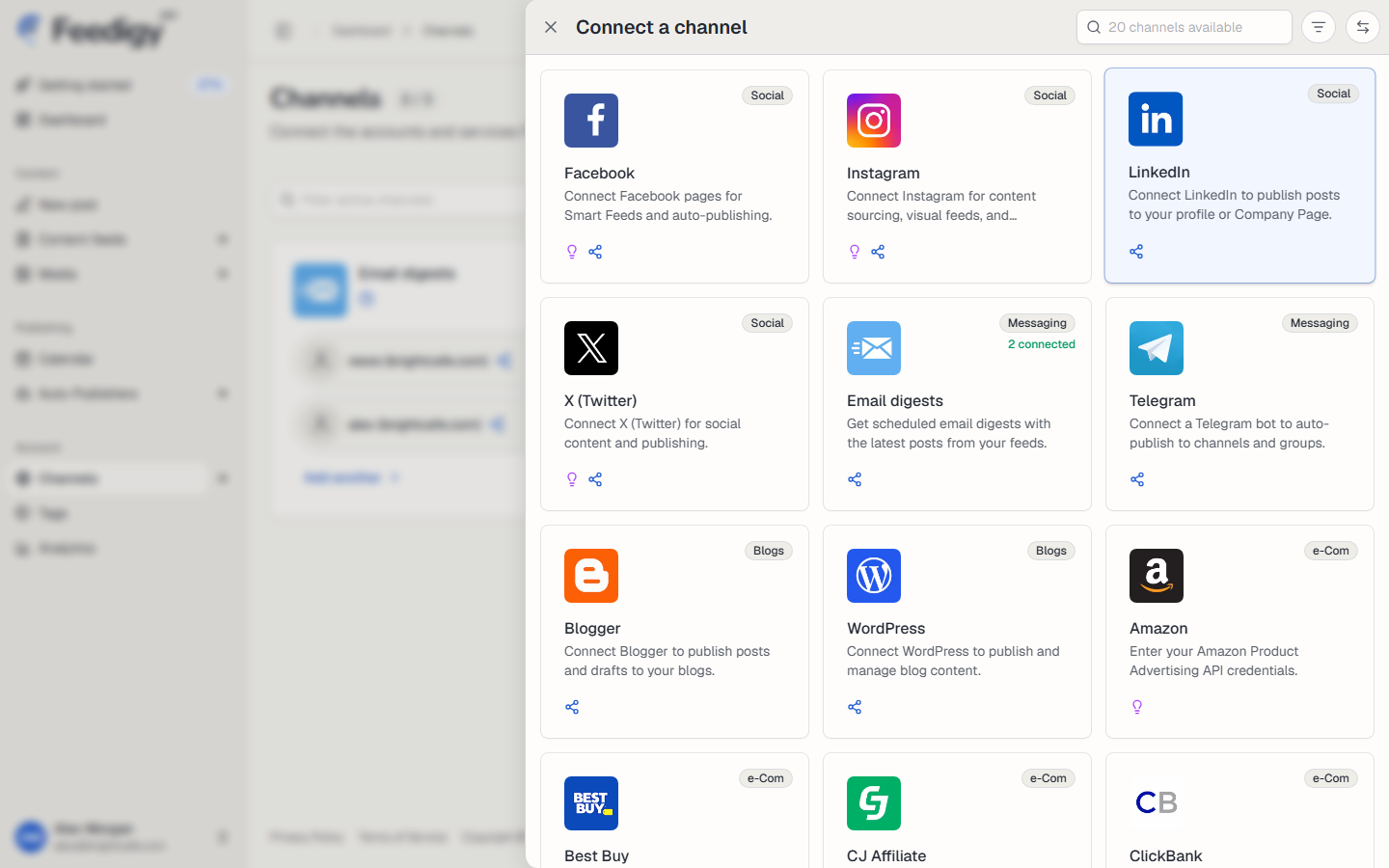
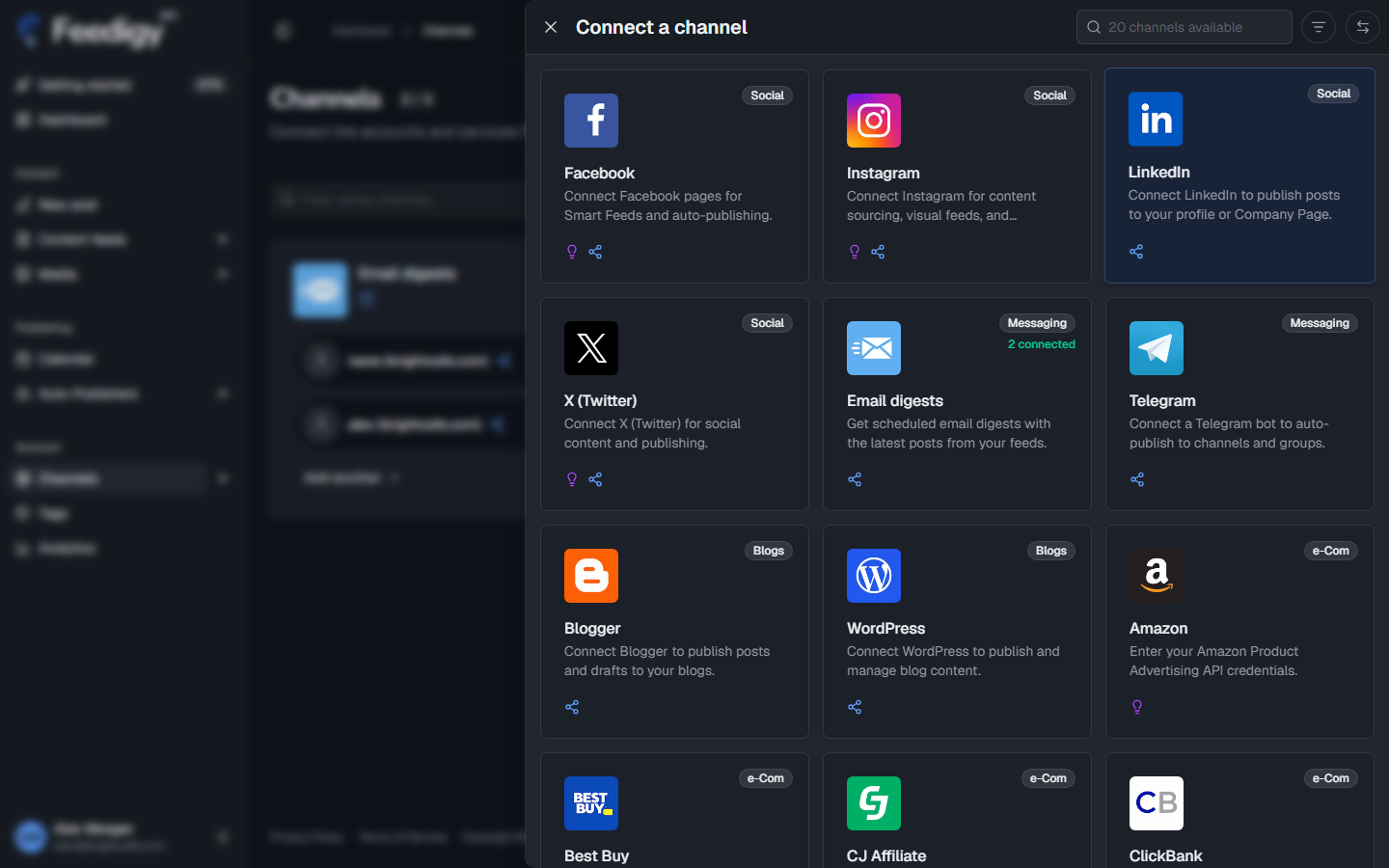
Each card shows small icons for what the channel can do: a bulb for source and a share icon for destination. A card that already has connections shows how many.
How you connect depends on the platform:
- Sign in with the platform: Facebook, LinkedIn, Pinterest, Blogger and Vimeo. You sign in and approve access, and Feedigy never sees your password. For Facebook, LinkedIn and Blogger you then pick the Pages or blogs to use.
- Instagram: you choose whether to connect it for Smart Feeds (source) or for publishing (destination), and each choice has its own sign-in.
- X (Twitter): you register your own X app, then sign in with it.
- A form: Telegram (a bot token), WordPress (your site address, username and an application password), Email digests (an email address you confirm from your inbox) and automation platforms (a webhook URL).
- API key or affiliate ID: Amazon, Best Buy, eBay, ClickBank, CJ Affiliate, Shopify, YouTube, Taddy, The Guardian and NewsData.io. Shopify also asks for your store address.
You can connect more than one account of the same platform. Select Add another on a channel’s card.
Manage a connected channel
Section titled “Manage a connected channel”Each platform you use gets a card on the Channels page. The card lists every account you connected, with icons that show whether that account works as a source, a destination or both.
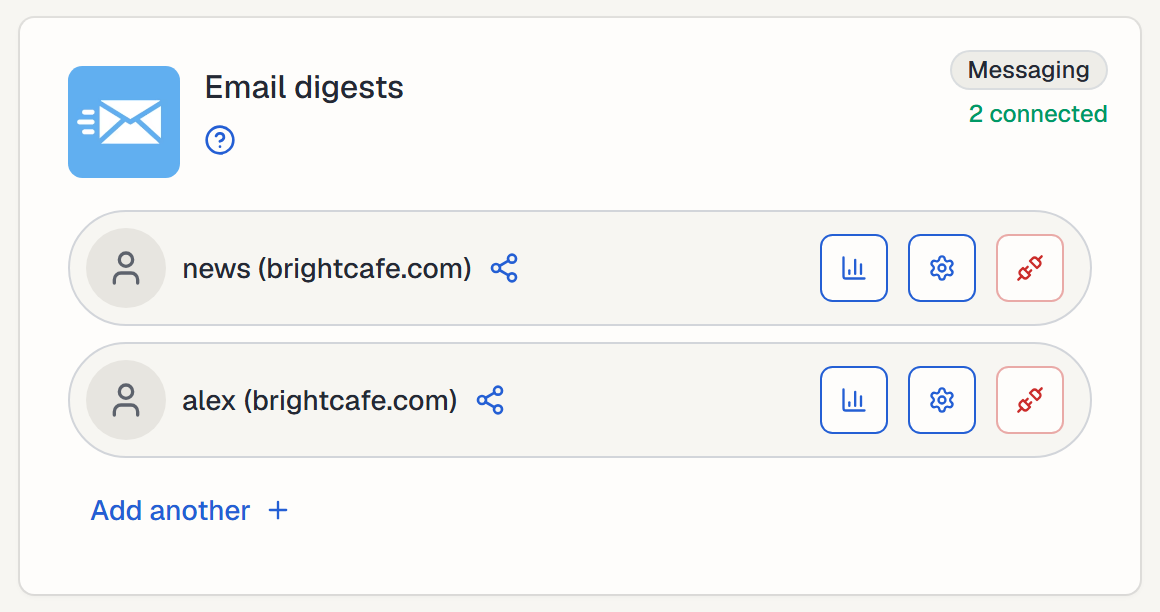
Next to each account:
| Button | What it does |
|---|---|
| Analytics | Opens the channel’s analytics. Shown for destination accounts. |
| Settings | Rename the channel, replace its picture, or Reauthorize it if its access expired or was revoked. |
| Disconnect | Removes the account after you confirm. Smart Feeds and Auto-Publishers that use it stop. You can reconnect it later. |
Some platforms add a manage button: Manage pages for Facebook, Manage blogs for Blogger, Manage apps for X, and a button to add a chat for Telegram. The ? under the channel name opens that channel’s page in this manual.
On a small screen these buttons move into a ⋯ menu.
Find a channel
Section titled “Find a channel”The bar above your channels filters what you already connected:
- Filter active channels searches by channel or account name.
- The filter button narrows the list by type.
- The direction button shows only source channels or only destination channels.
Channel limits
Section titled “Channel limits”The number next to the page title, such as 2 / 3, shows how many channels you have connected and how many your plan allows. Each connected account counts. When you reach the limit, upgrade your plan or disconnect a channel you no longer use.
If you have more channels than your plan allows, for example after a downgrade, the extra ones are marked Over limit, and a filter appears to show them.
Take the Channels tour
Section titled “Take the Channels tour”Select the hand icon next to the page subtitle to walk through the Channels page in about a minute. See Guided tours.
Keep posting through busy weeks
Set sources, keywords and posting hours once. Feedigy posts to your channels while you work on other things.
No card required. The Free plan has no time limit.