
Profile
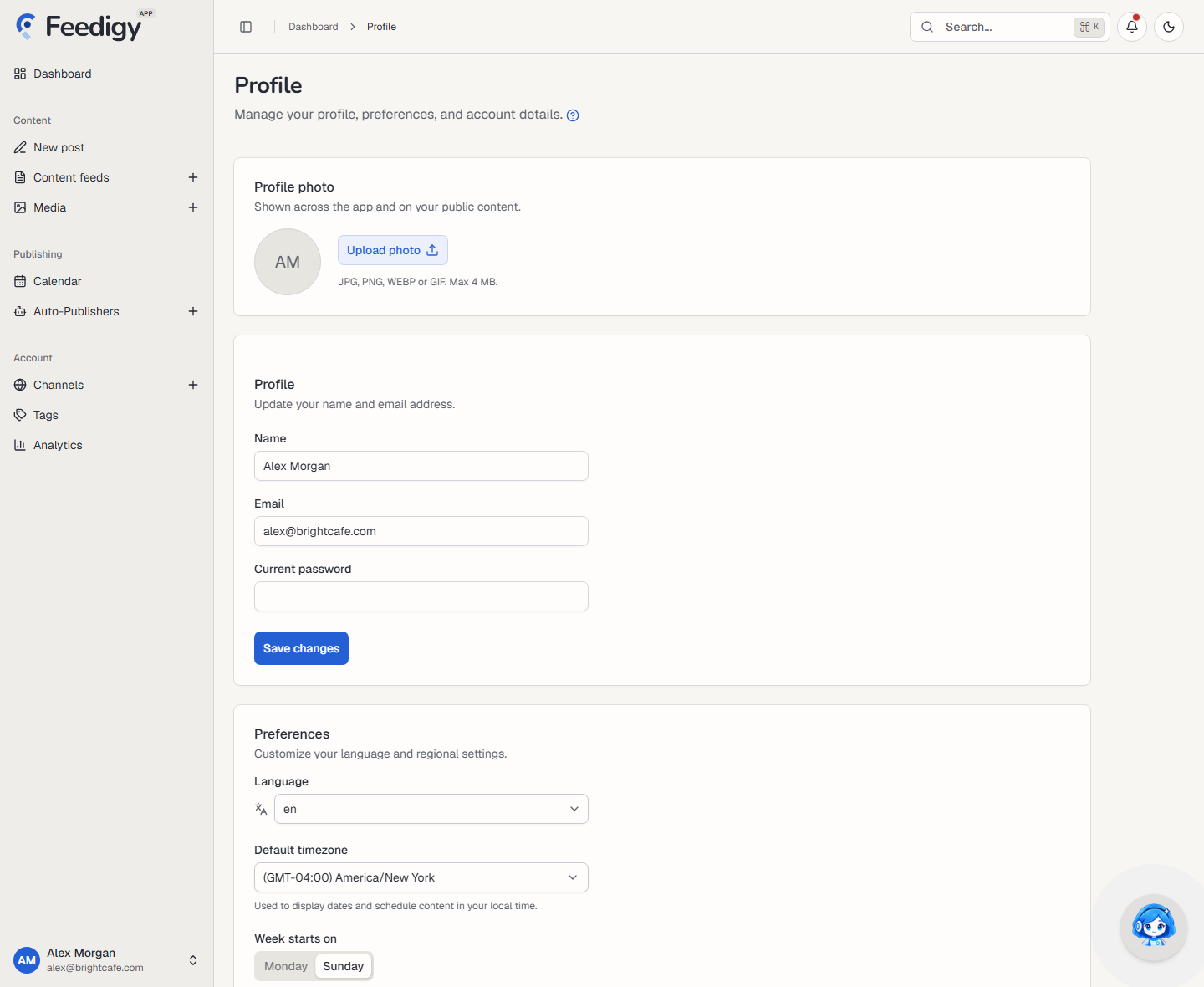
The Profile page holds everything about you as a user: your photo, name and email, regional preferences, password and connected logins. To open it, select your name in the lower-left corner of the app and choose Profile.
Profile photo
Section titled “Profile photo”Your photo shows across the app and on your public content. Until you add one, Feedigy shows your initials.
- Upload photo: pick a JPG, PNG, WEBP or GIF file, up to 4 MB, then select Save photo.
- Change photo and Remove: replace the photo or go back to your initials.
Name and email
Section titled “Name and email”Edit Name and Email, then select Save changes.
If you change your email address, Feedigy also asks for your current password. This keeps someone with access to an open browser from taking over your account.
Preferences
Section titled “Preferences”| Setting | What it does |
|---|---|
| Language | The language of the app interface. |
| Default timezone | Used to show dates and to schedule content in your local time. |
| Week starts on | Monday or Sunday. Used by the Calendar. |
| Time format | 12h or 24h. Used across the app. |
Changing the default timezone
Section titled “Changing the default timezone”Feedigy asks you to confirm a timezone change. The new timezone affects how your Original Feed posts and Auto-Publishers schedule and display times, unless a feed or Auto-Publisher has its own timezone set.
Password
Section titled “Password”Enter your current password, then the new one twice, and select Save. Use a strong password that you do not use anywhere else.
If you signed up with Google or Facebook, you have no password yet. The card is called Set a password and lets you add one, so you can also sign in with your email.
Connected logins
Section titled “Connected logins”Link a Google or Facebook account to sign in faster. Each one shows Connected or Not connected, with a Connect or Disconnect button.
These logins are only for signing in to Feedigy. To publish to Facebook, connect it as a channel under Account → Channels instead.
Delete account
Section titled “Delete account”Delete account removes your account, feeds, channels and all related data for good. Feedigy asks you to type your email address to confirm, and the action cannot be undone.
Next steps
Section titled “Next steps”- Check your plan and invoices in Billing & Usage.
- Choose which emails you get in Settings.
Keep posting through busy weeks
Set sources, keywords and posting hours once. Feedigy posts to your channels while you work on other things.
No card required. The Free plan has no time limit.