
Billing & Usage
The Billing & Usage page shows what you pay for, how much of it you use, and how you pay. Open it from the user menu in the lower-left corner of the app. It has three tabs: Current plan, Transactions and Payment method.
Current plan
Section titled “Current plan”The left side shows your plan. The right side shows your usage.
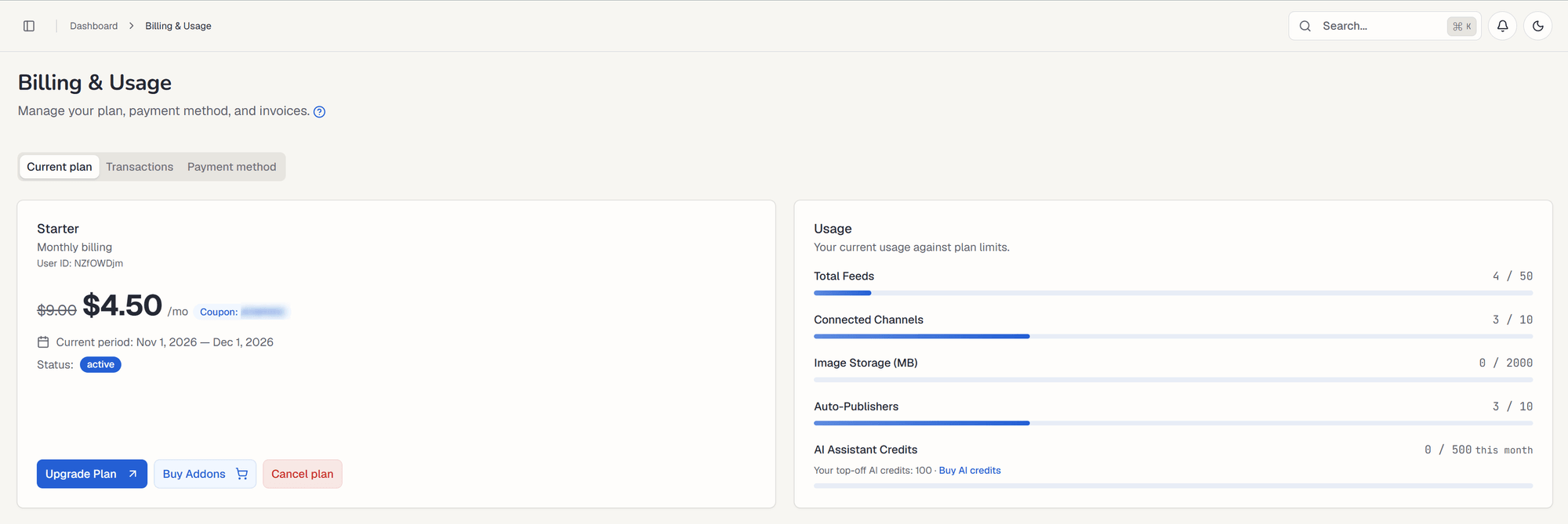
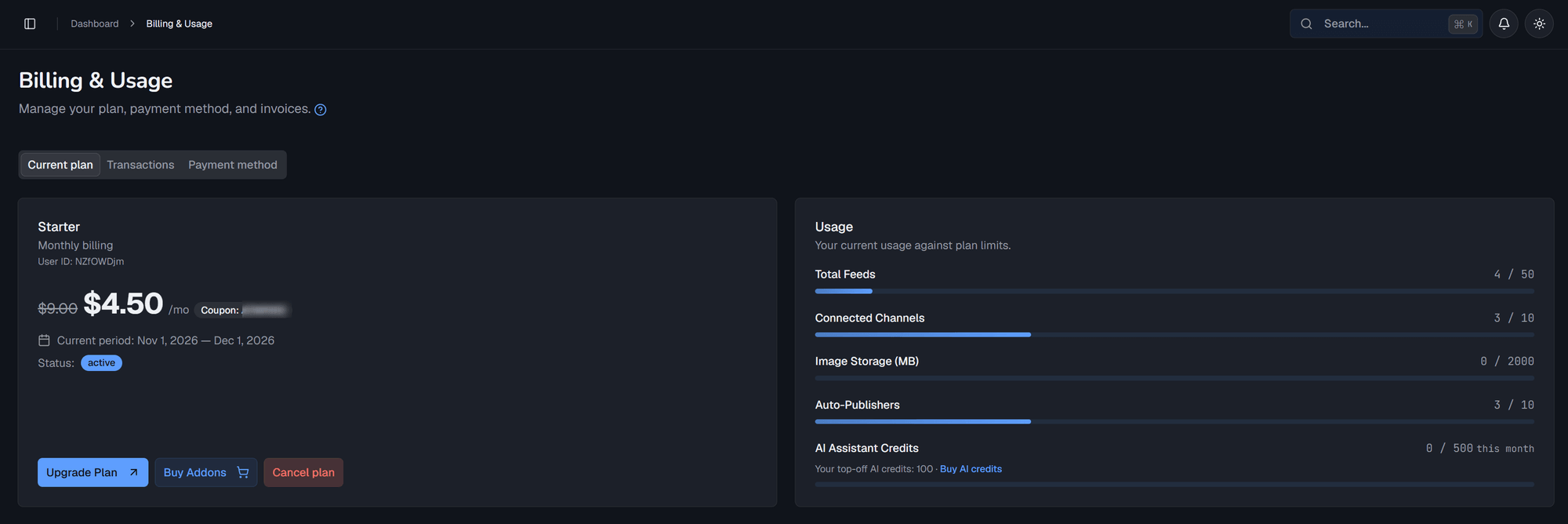
Your plan
Section titled “Your plan”On the Free plan, the card offers two buttons:
- Upgrade Plan: compare plans and subscribe.
- Buy Addons: add extra capacity without changing plan.
On a paid plan, the card shows the plan name, monthly or annual billing, the price, the current period, the status and your user ID. It also shows:
- Base plan and Add-ons prices, when you have add-ons.
- Coupon, if you used one.
- Account credit, which Feedigy applies automatically to your next invoice.
- Trial ends, during a trial.
At the bottom, Upgrade Plan and Buy Addons work as on the Free plan, and Cancel plan ends your subscription. See Cancel your plan.
Purchased add-ons
Section titled “Purchased add-ons”A list of the recurring add-ons on your subscription. Each one shows its quantity and its current charge. Select Remove to drop an add-on. It leaves your subscription right away, and Feedigy credits unused time to your account.
The Usage card compares what you use with your plan limits.
| Meter | Counts |
|---|---|
| Total Feeds | Your feeds of all types. |
| Connected Channels | Channels you have connected. |
| Image Storage (MB) | Space used by your Media Library uploads. |
| Auto-Publishers | Auto-Publishers you have created. |
| AI Assistant Credits | Febe AI credits used this month. They reset every month. |
Under AI Assistant Credits, Your top-off AI credits shows the credits left from one-time credit packs. Feedigy uses them only after your monthly credits run out. Select Buy AI credits to buy more.
A bar turns red when you reach the limit. To get more room, upgrade your plan or buy an add-on. See Add-ons & Top-offs.
Cancel your plan
Section titled “Cancel your plan”Select Cancel plan on a paid plan. You keep the plan and its limits until the end of the billing period, then move to the Free plan. Until then, the page shows the date the plan ends.
Transactions
Section titled “Transactions”Your payment history.
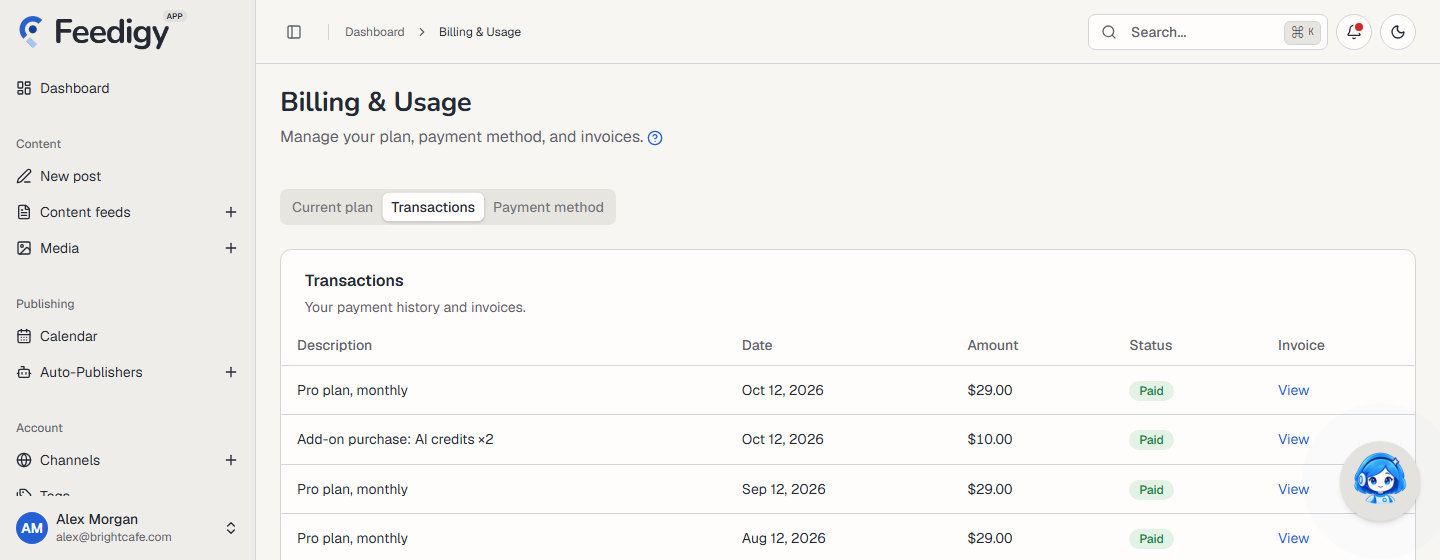
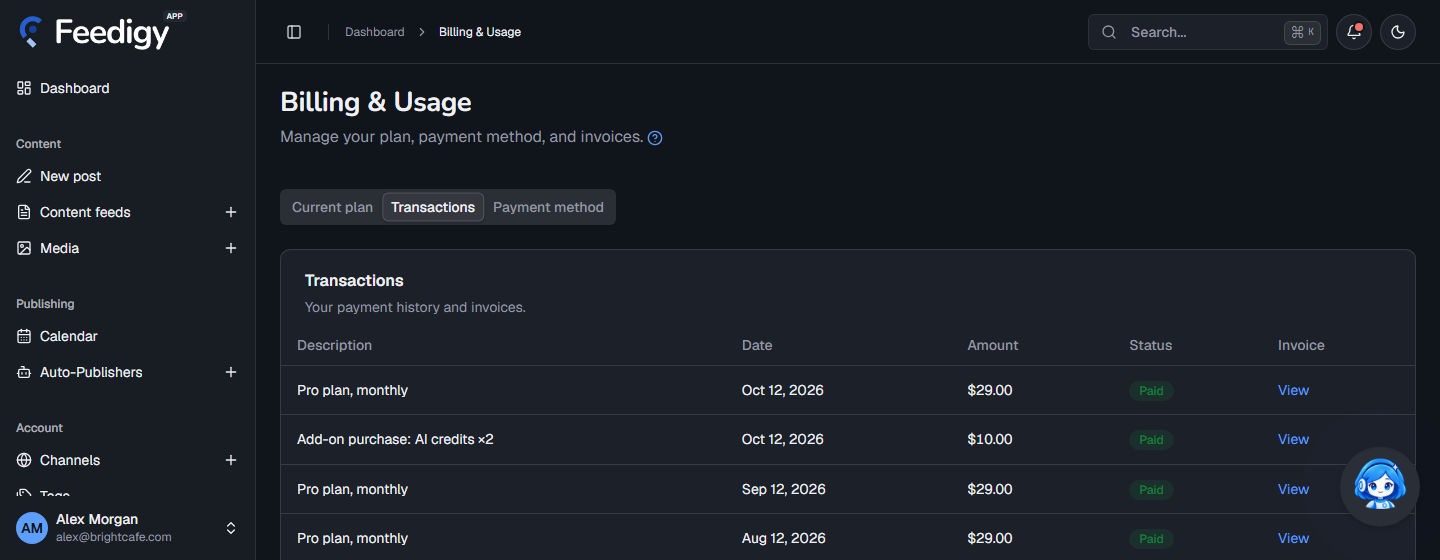
Each row shows the description, date, amount, any coupon, status and payment method. Select View to open the invoice. Use Previous and Next to page through the list.
Until you make a payment, the tab says No transactions yet.
Payment method
Section titled “Payment method”This tab holds the card Feedigy charges for your subscription. It shows the card brand, the last four digits and the expiry date.
- Add Payment Method: add a card. You need one to upgrade.
- Update Payment Method: replace the card.
Feedigy never stores your card number. Stripe, our payment provider, handles it.
Emails about billing
Section titled “Emails about billing”Stripe sends receipts and card-expiry notices. Feedigy sends failed-payment and renewal-reminder emails to your account address. To turn the annual Payment due reminder on or off, open Settings.
Keep posting through busy weeks
Set sources, keywords and posting hours once. Feedigy posts to your channels while you work on other things.
No card required. The Free plan has no time limit.