
Shopify feeds
A Shopify feed is a smart feed built from a Shopify store. It lists the store’s products, with image, name, price and a link to the product page, or its blog articles. Use it to announce new products from your own store, or to share your store’s blog posts on social media.
Before you start: connect your store
Section titled “Before you start: connect your store”Feedigy reads the store through the Shopify Storefront API.
- In the Shopify admin, create an app with Storefront API access and copy its Storefront API access token.
- In Feedigy, open Generate smart feed, choose Shopify, and select Add new account….
- Enter the Store URL, for example
yourstore.myshopify.com, and the token in API Key. - Select Connect.
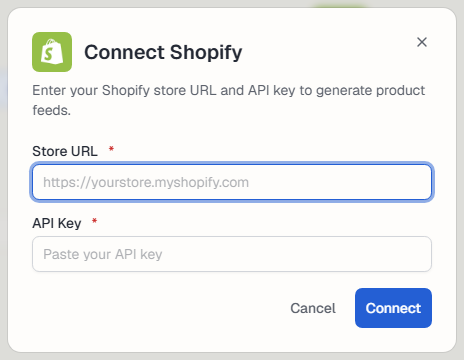
You can also connect it on the Shopify channel page. With more than one store, pick the one to use in Shopify account.
Create a Shopify feed
Section titled “Create a Shopify feed”- Open Content feeds in the sidebar, then Generate smart feed.
- In Select a source channel, choose Shopify (products).
- Pick the store in Shopify account.
- Choose Products or Articles:
- Products: in Collection, pick one collection, or leave All products.
- Articles: in Blog, pick one blog, or All articles.
- Check the items in Live preview on the right.
- Select Generate.
Advanced mode
Section titled “Advanced mode”- Tags: tags for the new feed. Shopify is added for you. See Tags.
After you generate
Section titled “After you generate”The new feed appears on the Content Feeds page with the Smart type. Feedigy refreshes a Shopify feed at most every 2 hours, when the feed is read, so new products show up soon after you add them. To share them on your channels, add the feed to an Auto-Publisher.
Keep posting through busy weeks
Set sources, keywords and posting hours once. Feedigy posts to your channels while you work on other things.
No card required. The Free plan has no time limit.