
Media Library
The Media Library holds every image, video and audio file in your account: files you upload, photos you add from Unsplash, and images you make in AI Studio. Open Media in the sidebar to see it.
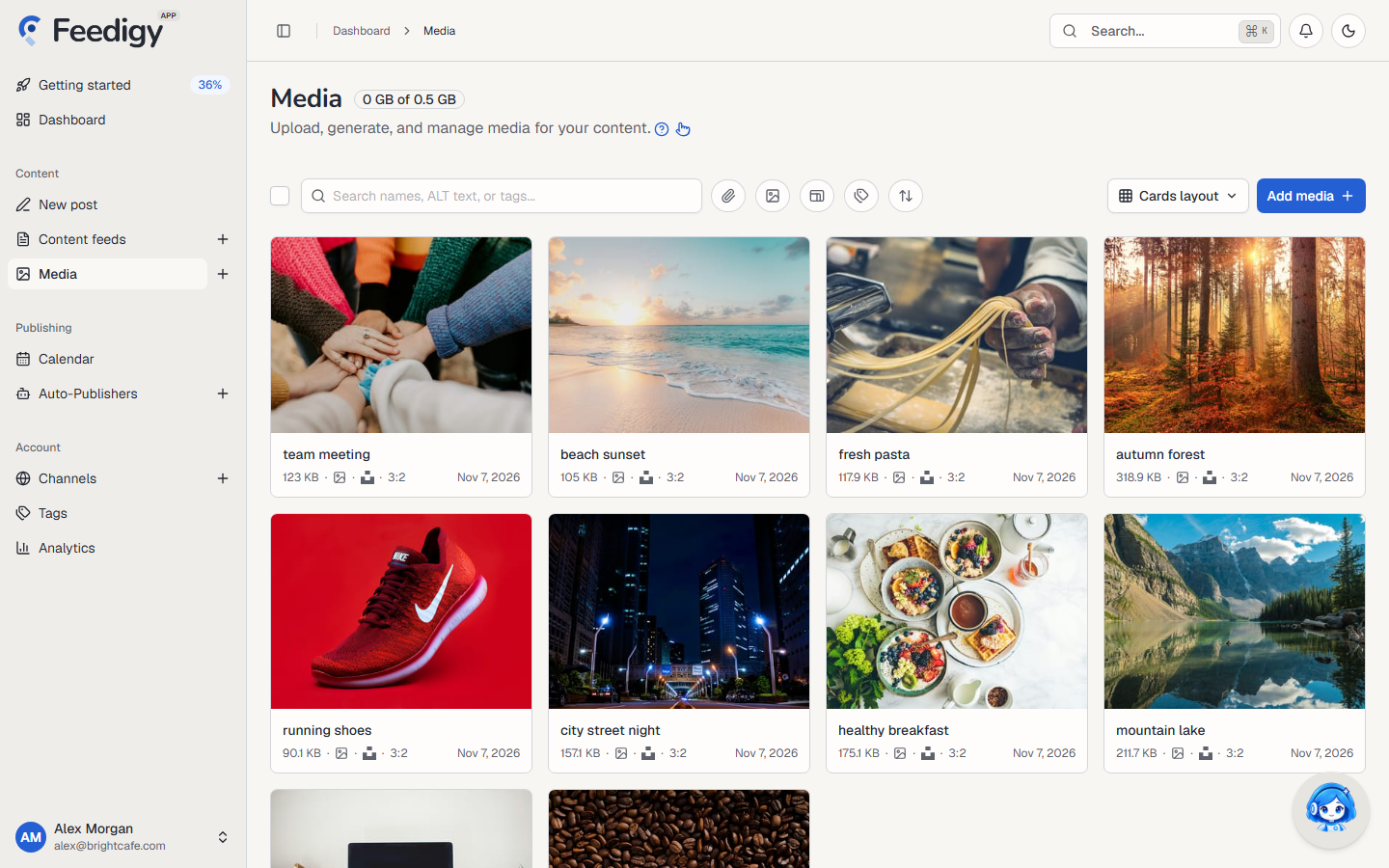
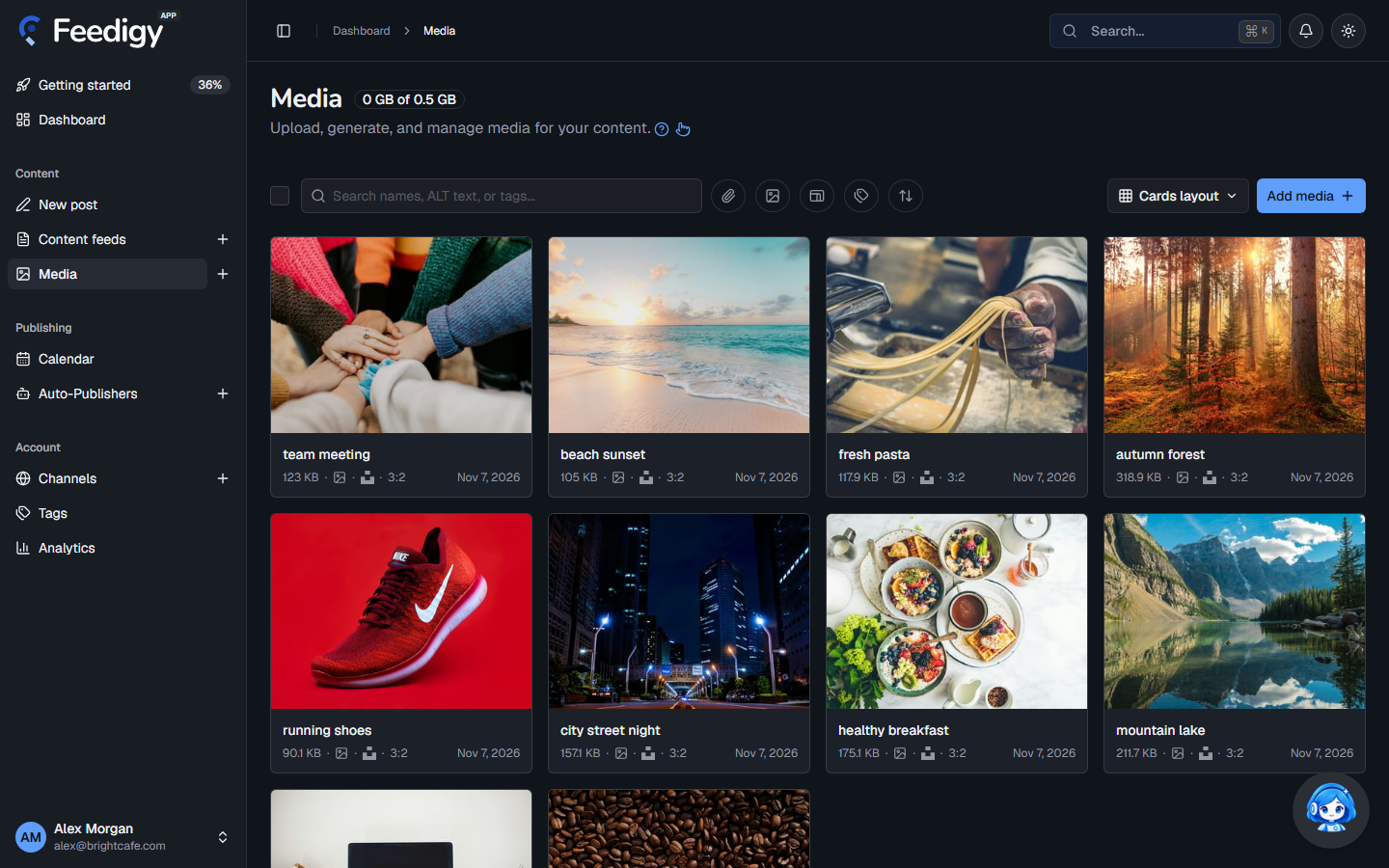
The badge next to the title shows how much storage you use and your plan’s limit, for example 0.2 GB of 0.5 GB.
Add media
Section titled “Add media”Select Add media, then choose one of three ways:
- Upload: add files from your computer.
- AI Studio: make a new image with AI. See AI Studio.
- Unsplash: add a free photo from Unsplash.
Upload files
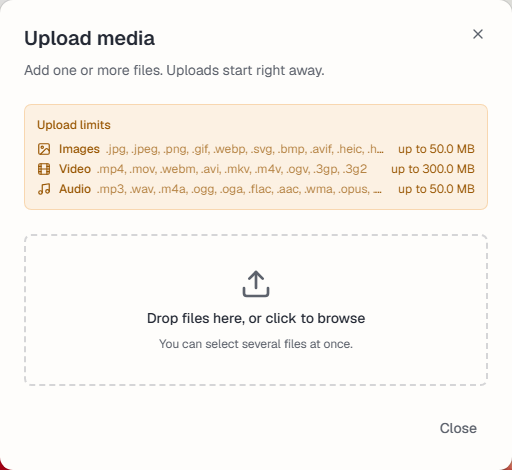
Section titled “Upload files”Drop files on the Upload media window, or click it to browse. You can select several files at once, and uploads start right away. You can close the window while files upload.
| Type | Files | Size limit |
|---|---|---|
| Images | .jpg, .png, .gif, .webp, .svg, .avif, .heic and more | 50 MB |
| Video | .mp4, .mov, .webm, .avi, .mkv and more | 300 MB |
| Audio | .mp3, .wav, .m4a, .ogg, .flac and more | 50 MB |
Add a photo from Unsplash
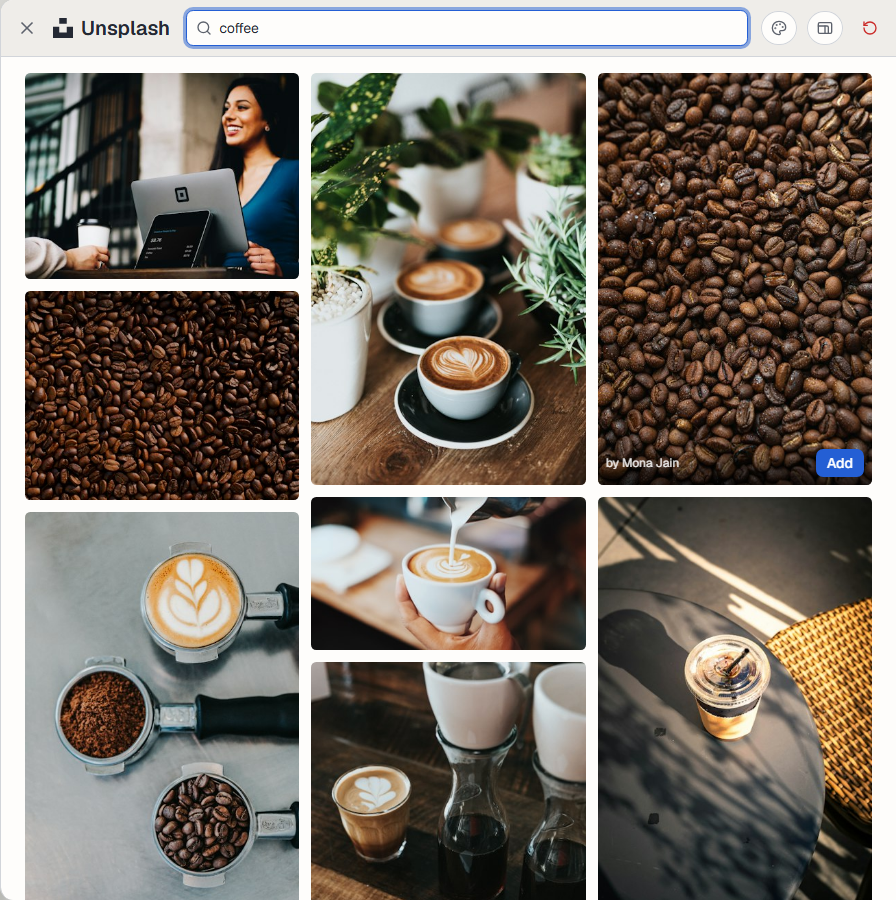
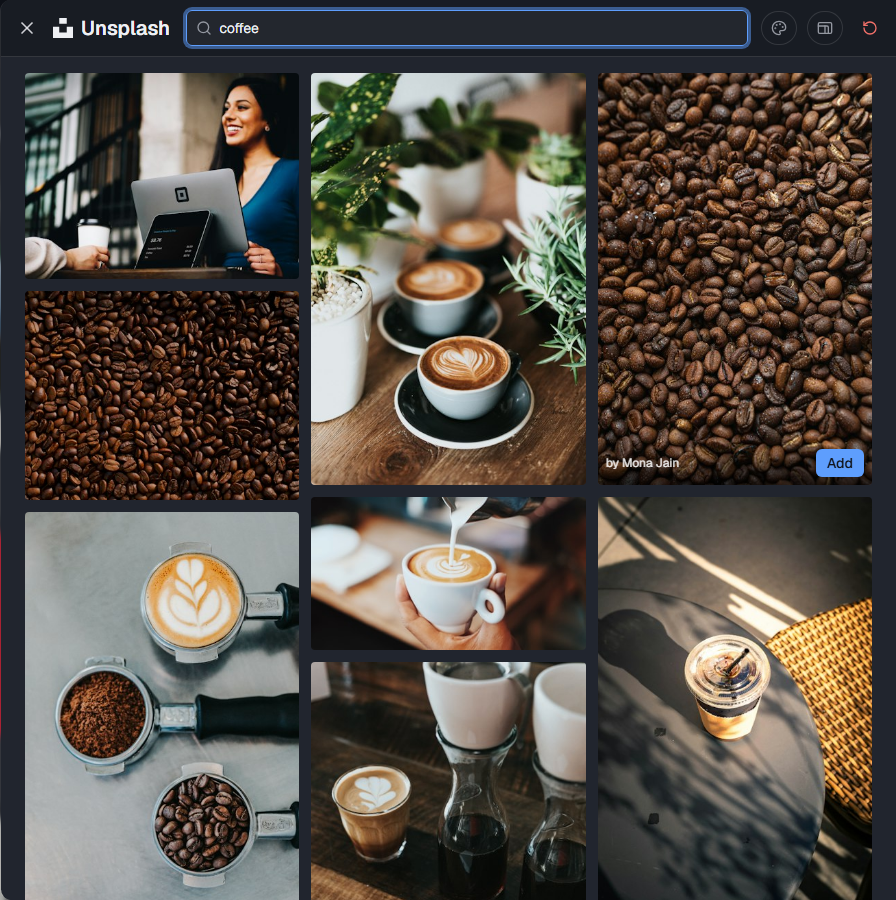
Section titled “Add a photo from Unsplash”Type what you need into Search Unsplash… and press Enter. Use the buttons next to the search box to filter by Color and Orientation. Point at a photo and select Add. Feedigy saves a copy in your library and keeps the photographer’s name for the credit.
Find media
Section titled “Find media”- Search names, ALT text, or tags…: search by file name, ALT text or tag.
- Filters next to the search box: Used or Unused (in a feed or post), type (Images, Video, Audio), aspect ratio (Landscape, Square, Portrait) and tags. Reset filters clears them.
- Sort by: Date, Name or Size.
- Cards layout or List view: switch how the library looks.
Work with one item
Section titled “Work with one item”Point at a card to see its actions:
- View full: open the item at full size. From there you can Download it or, for an image, Edit in AI Studio.
- Add to post: use the item in an original feed. Pick a Feed to make the image the feed’s featured image, or pick a Post and choose Set as featured image or Insert at top of post body. Video and audio can only be inserted into a post.
- Edit details: change the File name, the ALT text that describes the image for screen readers, and Tags to find it later. Separate tags with commas.
- Delete: remove the item.
Work with many items
Section titled “Work with many items”Tick the box on each card, or Select all on this page. Then choose an action: Assign tags, Download as ZIP or Delete.
Media used in a feed or post cannot be deleted. Remove it from the feed or post first.
Keep posting through busy weeks
Set sources, keywords and posting hours once. Feedigy posts to your channels while you work on other things.
No card required. The Free plan has no time limit.