
Discover Feeds
Discover Feeds is a catalog of public RSS and Atom feeds from news sites, blogs, magazines and podcasts. Search it to find sources for your topic, then add them to your account. A feed you add becomes a discovery feed: Feedigy reads its new posts, and you can read them, share them or send them to your channels with an Auto-Publisher.
Open Content feeds in the sidebar, then Discover feeds. You can also select Add feeds on the Content Feeds page and choose Discover feeds.
Browse by topic
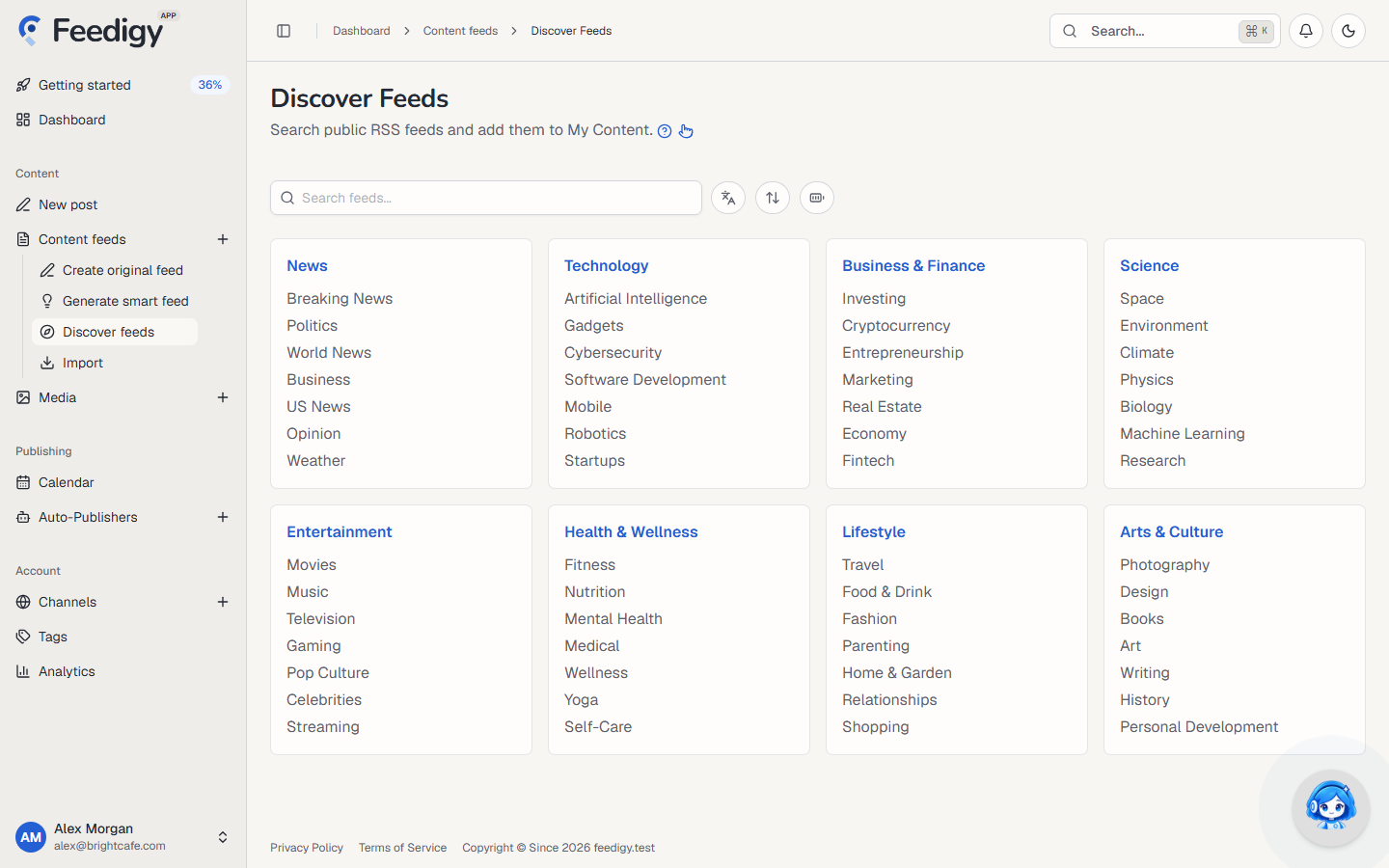
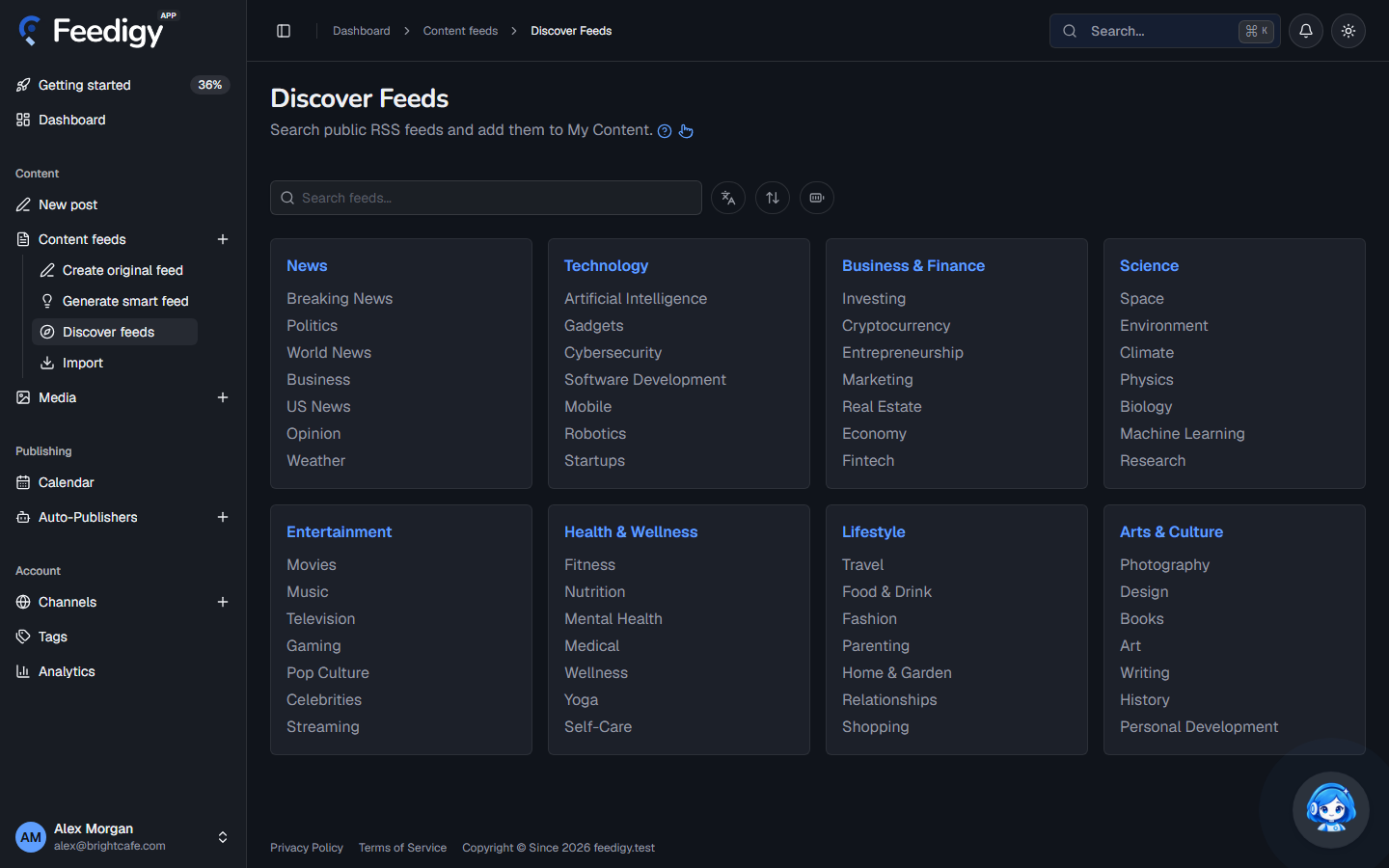
Section titled “Browse by topic”The page opens with topics, grouped by subject: News, Technology, Business & Finance, Science, Entertainment, Health & Wellness, Lifestyle, and Arts & Culture. Select a group name or a topic under it to search for it.
Search
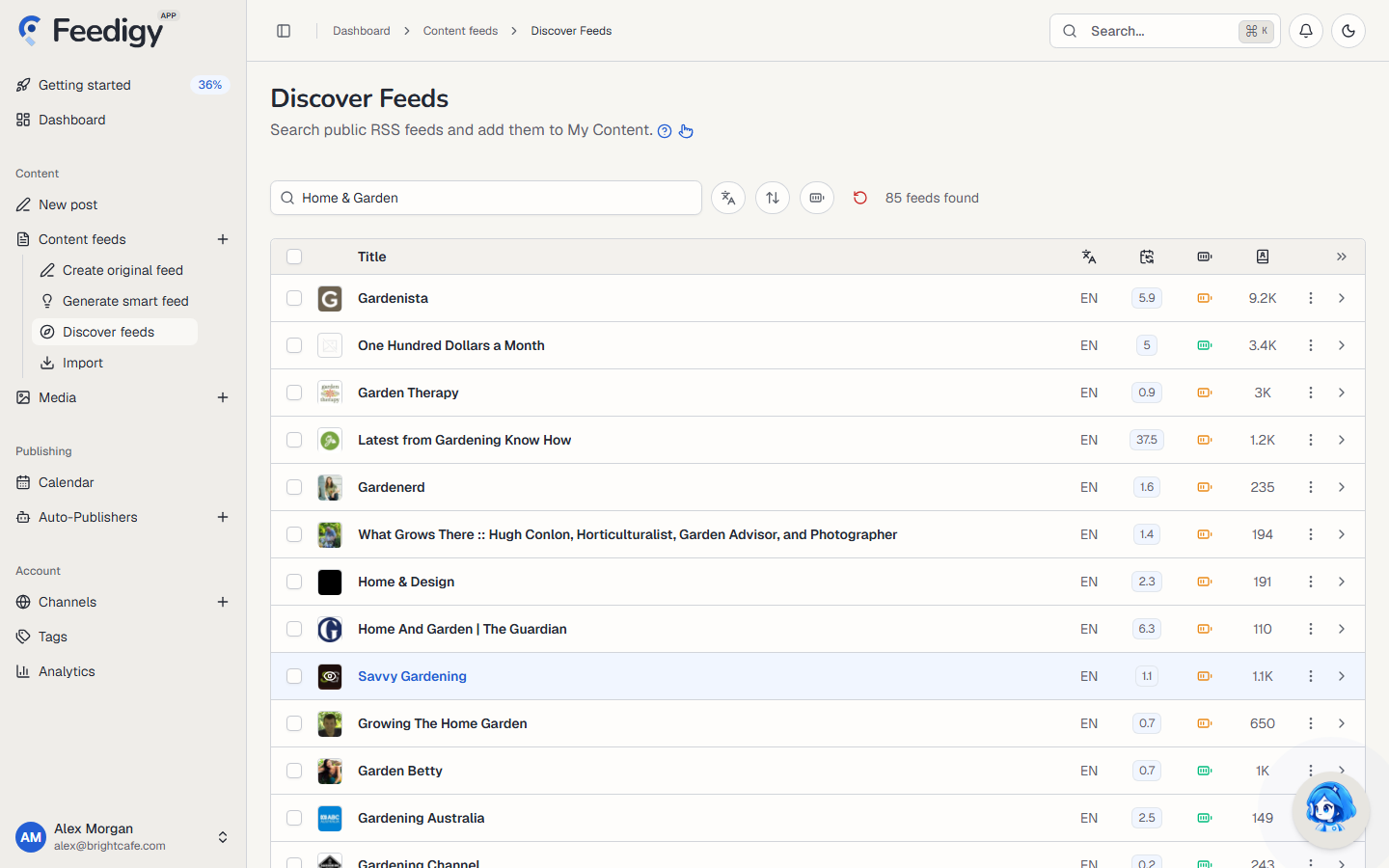
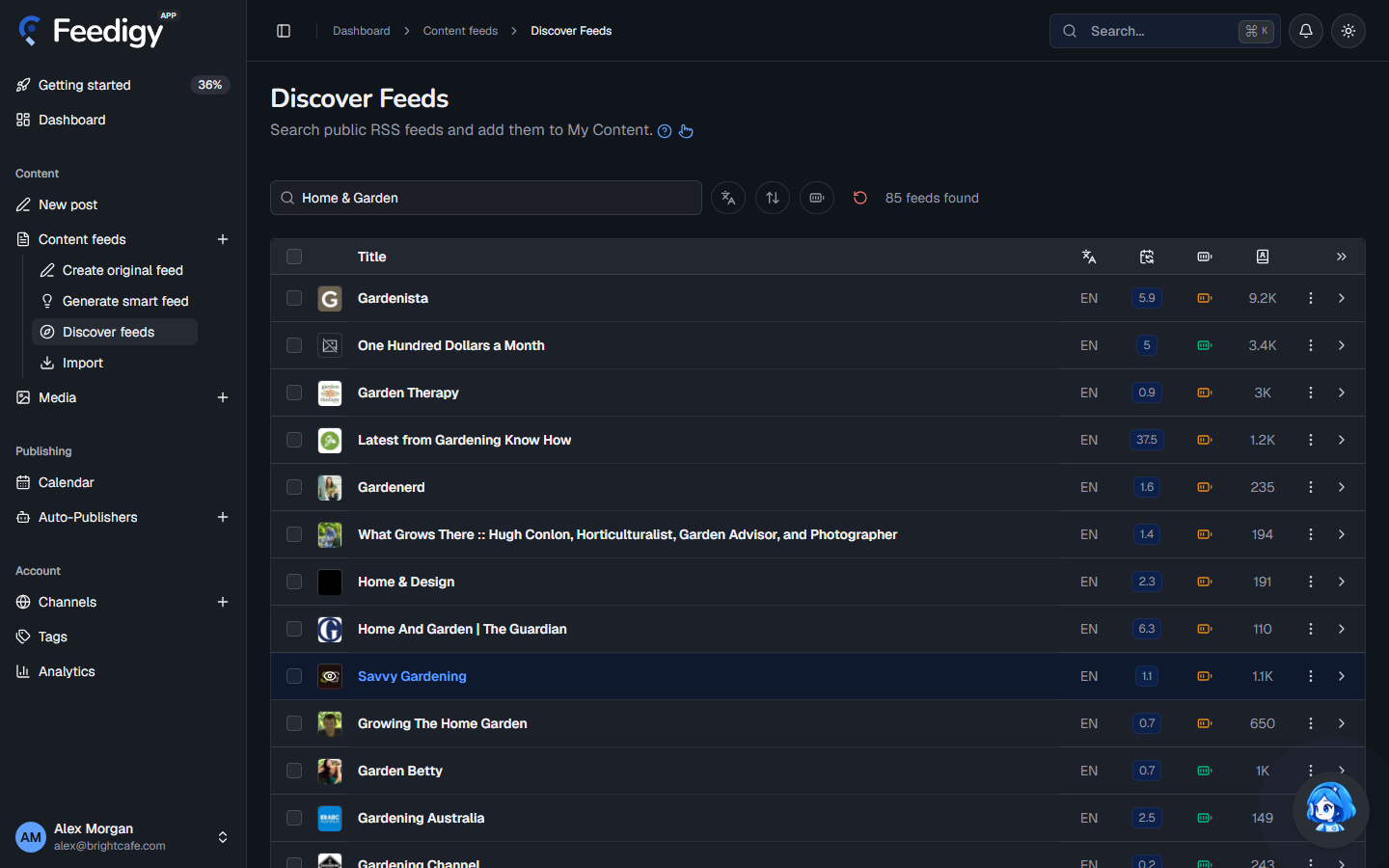
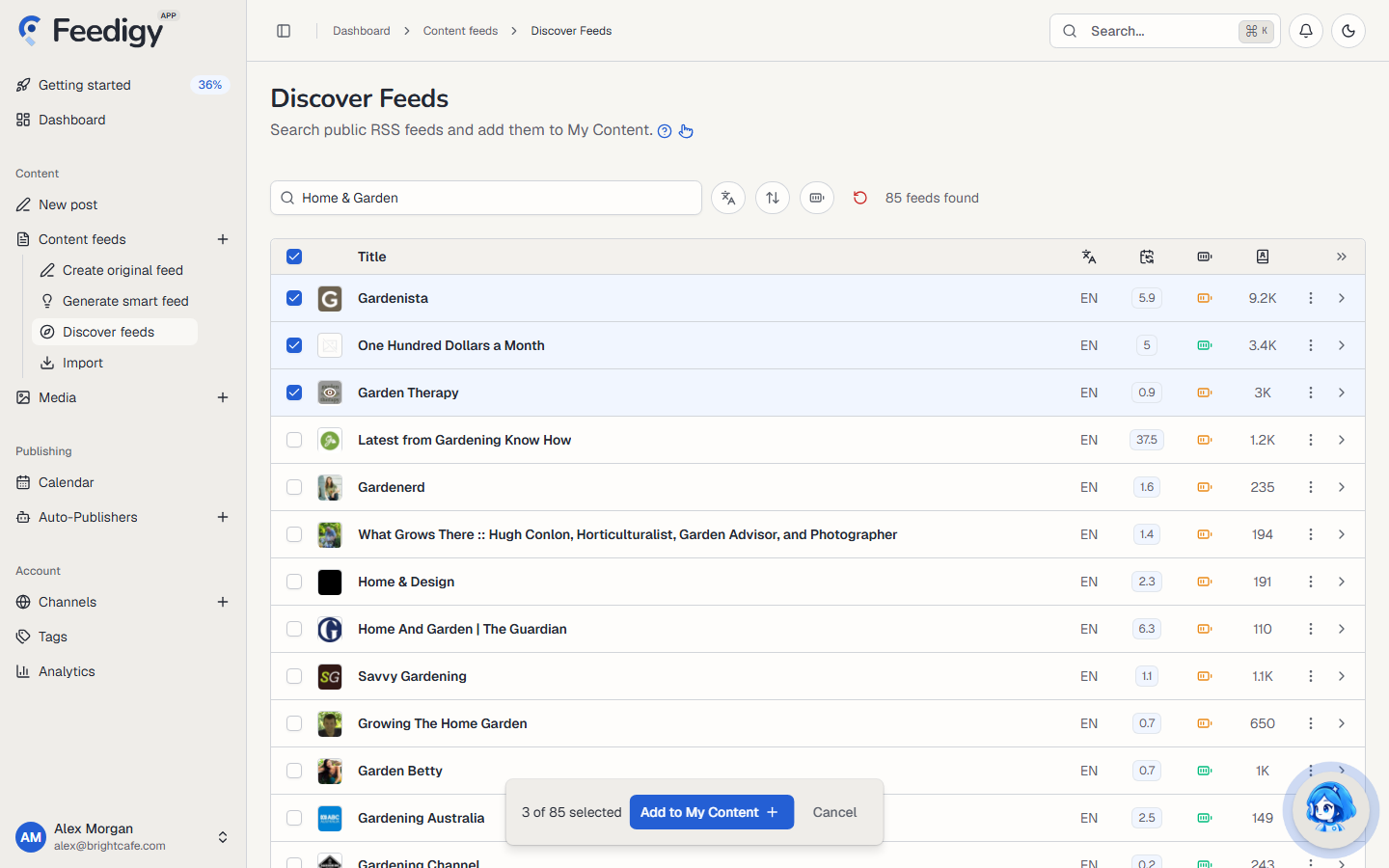
Section titled “Search”Type a topic, a site name or a word into Search feeds… and press Enter. The number of matching feeds shows next to the filters, for example 85 feeds found.
Each result shows:
- Title and logo of the feed.
- Language of the feed, for example EN.
- Updates per week: how many posts the feed publishes in an average week. Use it to choose between a busy source and a quiet one.
- Full or partial content: a green icon means the feed carries whole articles. An orange icon means it carries only a summary, and readers follow a link to the website for the rest.
- Subscribers: how many people follow the feed. It is a rough sign of the source’s popularity.
Point at an icon in the heading row to see what its column means.
Filter and sort
Section titled “Filter and sort”The three buttons next to the search box narrow and order the results:
- Language: show feeds in one language only, or Any language.
- Sorting: order the results by Updates per week, Subscribers or A to Z.
- Content: show only Full content or Partial content feeds, or Any.
Select the circular arrow to reset the filters.
Check a feed before you add it
Section titled “Check a feed before you add it”- Select a feed’s title to read its latest posts in the feed reader, without adding it.
- Select the arrow at the end of a row to see its description, the feed address and its website.
- Select ⋮ for the feed’s actions: Add to My Content, Add to auto-publisher, the feed address and source, and Report feed.
Add feeds to your account
Section titled “Add feeds to your account”To add one feed, select ⋮ on its row, then Add to My Content.
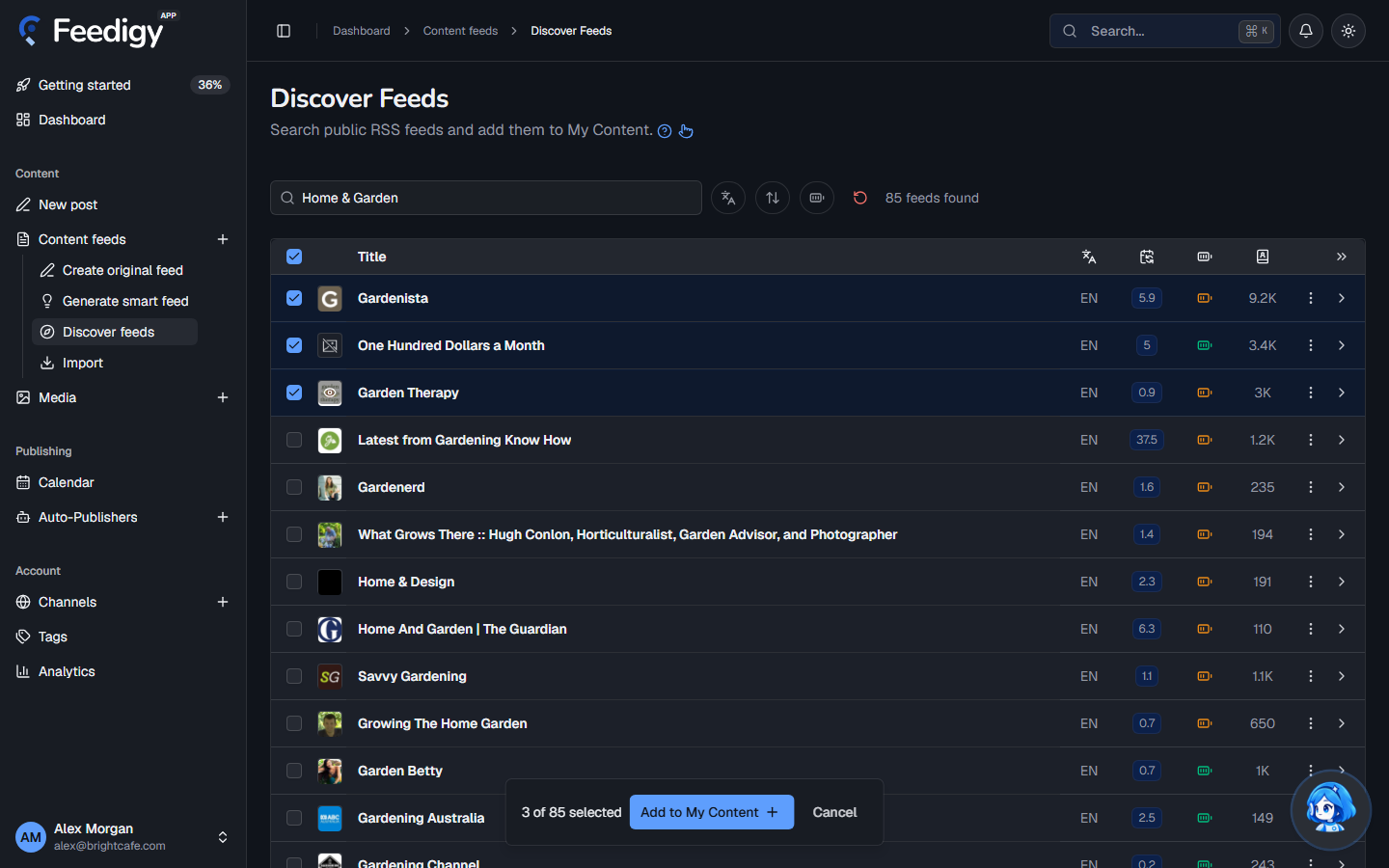
To add several, tick the box at the start of each row, or the box in the heading row to select the whole page. A bar shows how many you selected, for example 3 of 85 selected. Select Add to My Content.
Feedigy adds the feeds and tells you how it went:
- Feeds that are already in My Content are skipped. You never get the same feed twice.
- Feeds that would take you over your plan’s feed limit are not added. Remove feeds you no longer need, buy a feed add-on or upgrade your plan.
The new feeds appear on the Content Feeds page with the Discovery type. Every feed type counts toward your plan’s feed limit.
Send a feed to your channels
Section titled “Send a feed to your channels”To post a feed’s new articles to your channels, select ⋮ on its row, then Add to auto-publisher. Choose an existing Auto-Publisher or create a new one. See What are Auto-Publishers?.
Report a feed
Section titled “Report a feed”If a feed is broken, spam or not what its title says, select ⋮, then Report feed. Tell us why and select Report feed again. The feed is flagged for the Feedigy team to check.
Feed not in the catalog?
Section titled “Feed not in the catalog?”If you know the feed’s address, add it yourself on the Imported Feeds page. If the site has no RSS feed, a smart feed can often build one for you.
Keep posting through busy weeks
Set sources, keywords and posting hours once. Feedigy posts to your channels while you work on other things.
No card required. The Free plan has no time limit.