
Email digest automation
An email digest Auto-Publisher sends an email with the newest posts from your feeds, on your schedule. Use it for a daily news roundup for yourself, or a weekly digest for your team.
Before you start: add an address
Section titled “Before you start: add an address”Add the address on the Email digests channel page, or from the wizard with Add new. Feedigy sends a verification link to the address. Open it to confirm. Until then, the address shows Unverified, and digests do not go out.
Set it up
Section titled “Set it up”- Open Auto-Publishers, select Add new, and add your feeds. See Step 1.
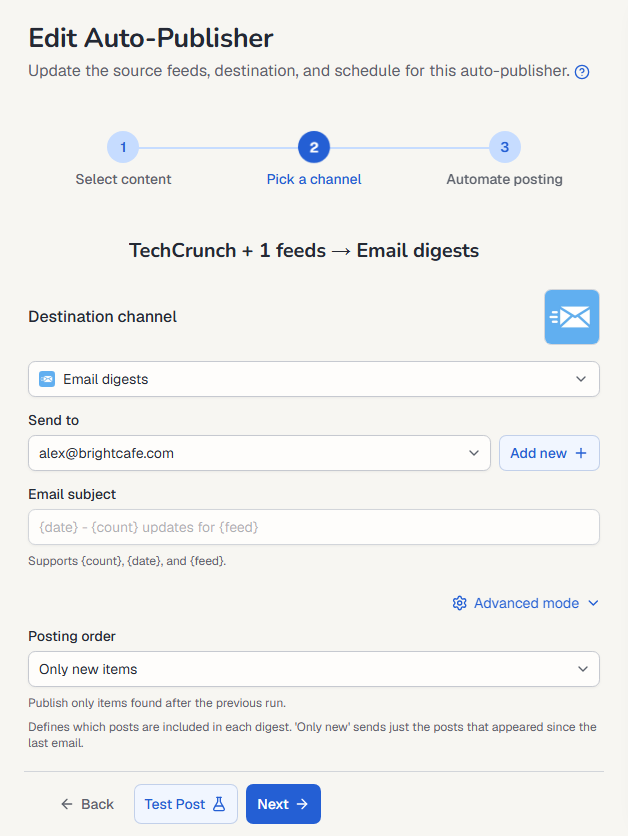
- In Destination channel, choose Email digests.
- In Send to, choose the address.
- Set the Email subject. You can use
{count}(number of posts),{date}and{feed}. The default is{date} - {count} updates forand the feed name. - Check the Digest preview on the right.
- Select Next, set the schedule, for example every day, and select Finish.
Advanced mode
Section titled “Advanced mode”- Posting order: which posts go into each digest. Only new items (the default) sends only the posts that appeared since the last email.
- Posts in digest: up to 5, 10 or 20 posts.
- Post template elements (draggable): the parts of each post in the email, such as Title, Author, Date, Feed Source, Body, Link, Tags and Images. Turn each on or off and drag them into order.
- Signature / Custom text: your own text in every digest.
Test it
Section titled “Test it”Select Test Post to send one real digest now with the current settings.
Keep posting through busy weeks
Set sources, keywords and posting hours once. Feedigy posts to your channels while you work on other things.
No card required. The Free plan has no time limit.