
Add-ons & Top-offs
Your plan sets limits on feeds, channels, storage, Auto-Publishers and AI credits. When you need more of one thing but not a bigger plan, you have two options:
- Add-ons add extra capacity to a paid plan. You pay for them every month or year, together with your plan.
- Top-offs are one-time AI credit packs. You pay once, and the credits never expire. They work on every plan, including Free.
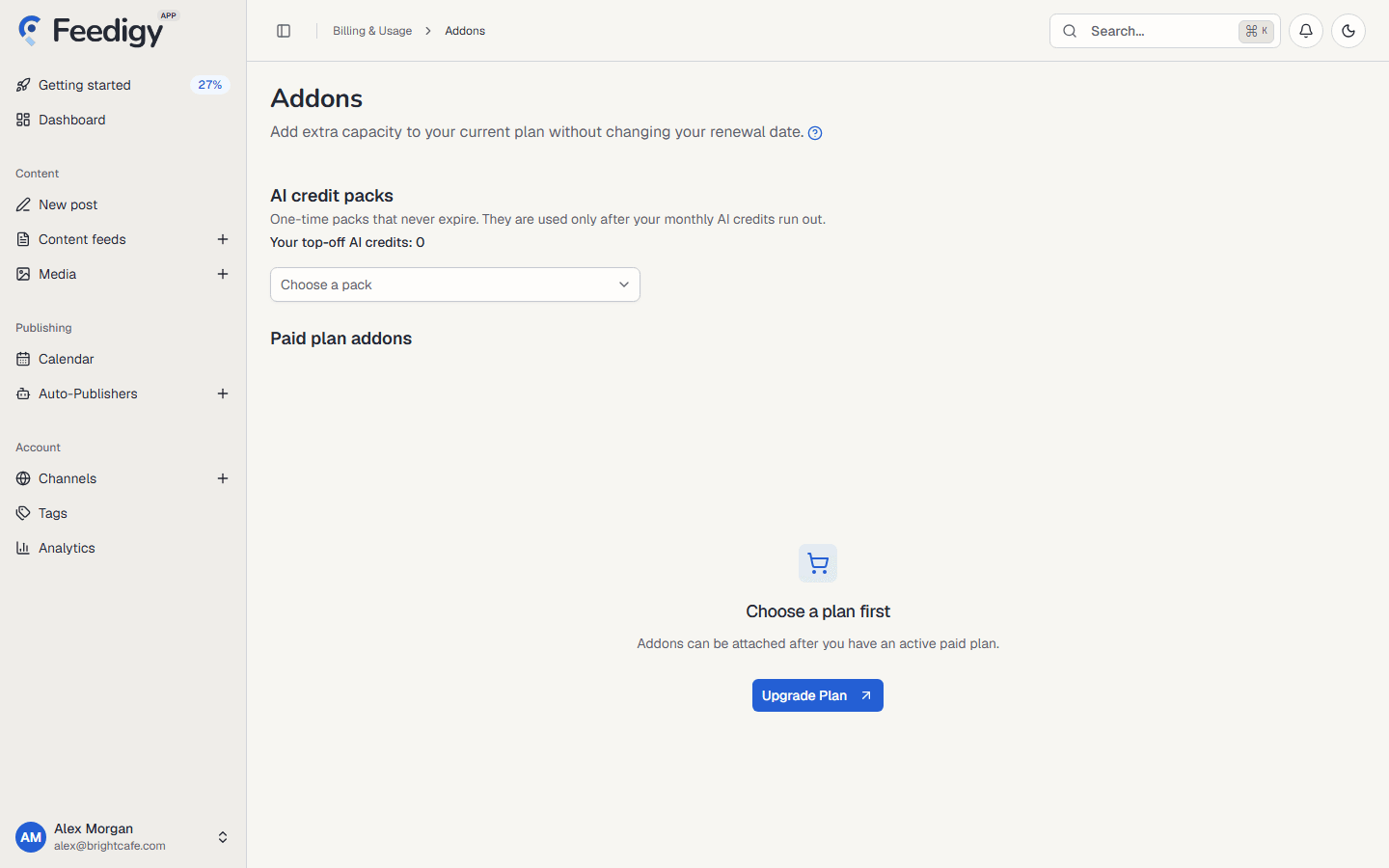
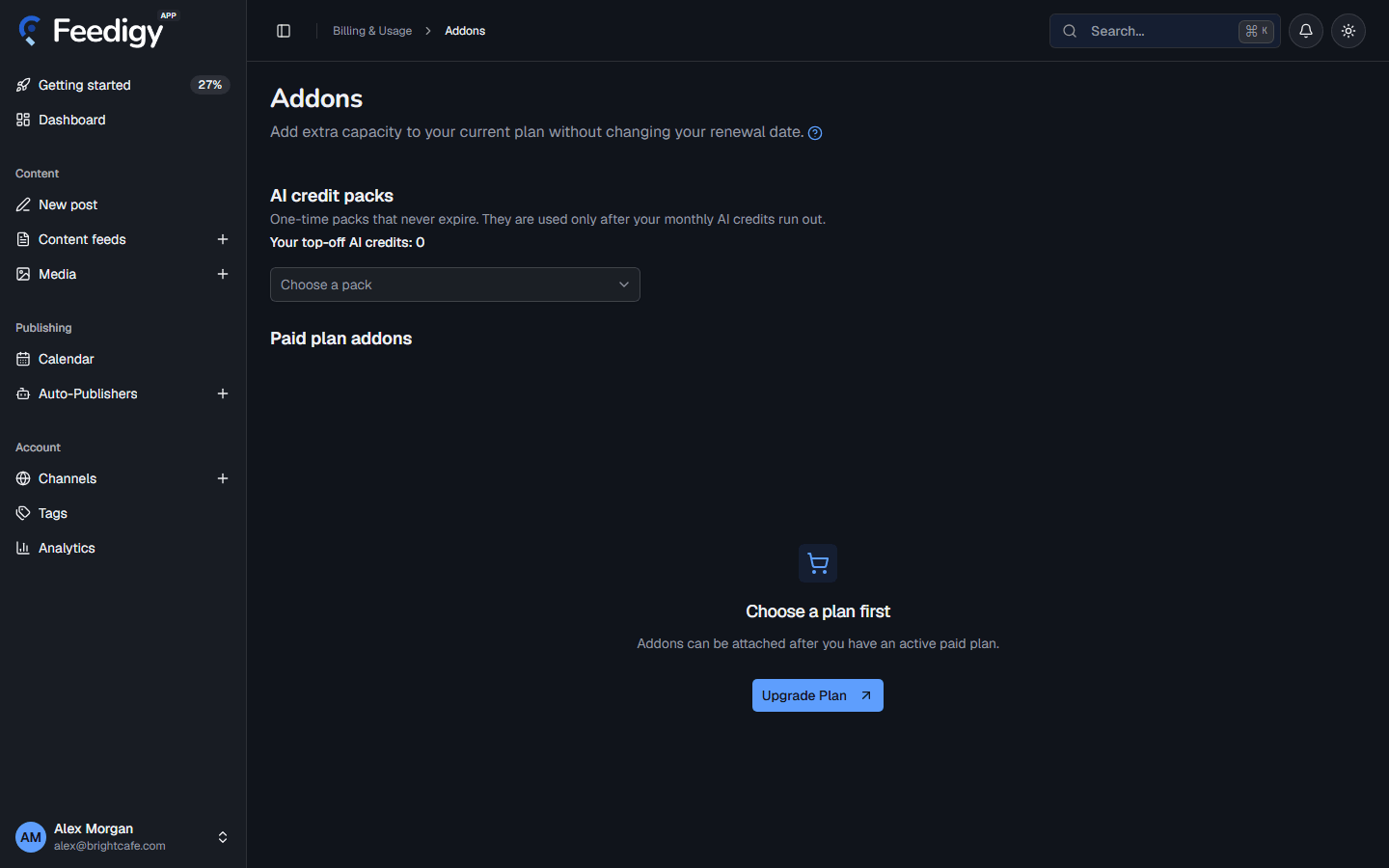
Both are on the Addons page. To open it, select your name in the lower-left corner of the app, then Buy Addons. You can also select Buy Addons on the Billing & Usage page.
Add-ons or top-offs?
Section titled “Add-ons or top-offs?”| Add-ons | Top-offs (AI credit packs) | |
|---|---|---|
| What you get | More feeds, channels, storage, Auto-Publishers, monthly AI credits or a shorter posting interval | A fixed number of AI credits |
| How you pay | Every month or year, with your plan | Once |
| How long it lasts | Until you remove it | Until you use the credits. They never expire |
| Plans | Paid plans only | Every plan, including Free |
| Best for | A lasting need, such as one more channel | A busy month with extra AI work |
Top-offs: AI credit packs
Section titled “Top-offs: AI credit packs”Feedigy’s AI features use AI credits: Febe AI, AI Studio, the AI menu in the post editor, AI processing in Auto-Publishers, and Make with AI and Edit with AI in Media. Your plan includes a number of AI credits every month, and they reset each month.
When you need more before the reset, buy a credit pack.
How top-off credits are used
Section titled “How top-off credits are used”- Feedigy always spends your monthly AI credits first.
- Top-off credits are used only after your monthly credits run out.
- Top-off credits never expire. Unused credits stay in your balance from month to month.
- If an AI job fails, Feedigy returns the credits it took.
Your top-off AI credits at the top of the section shows your current balance.
Buy a credit pack
Section titled “Buy a credit pack”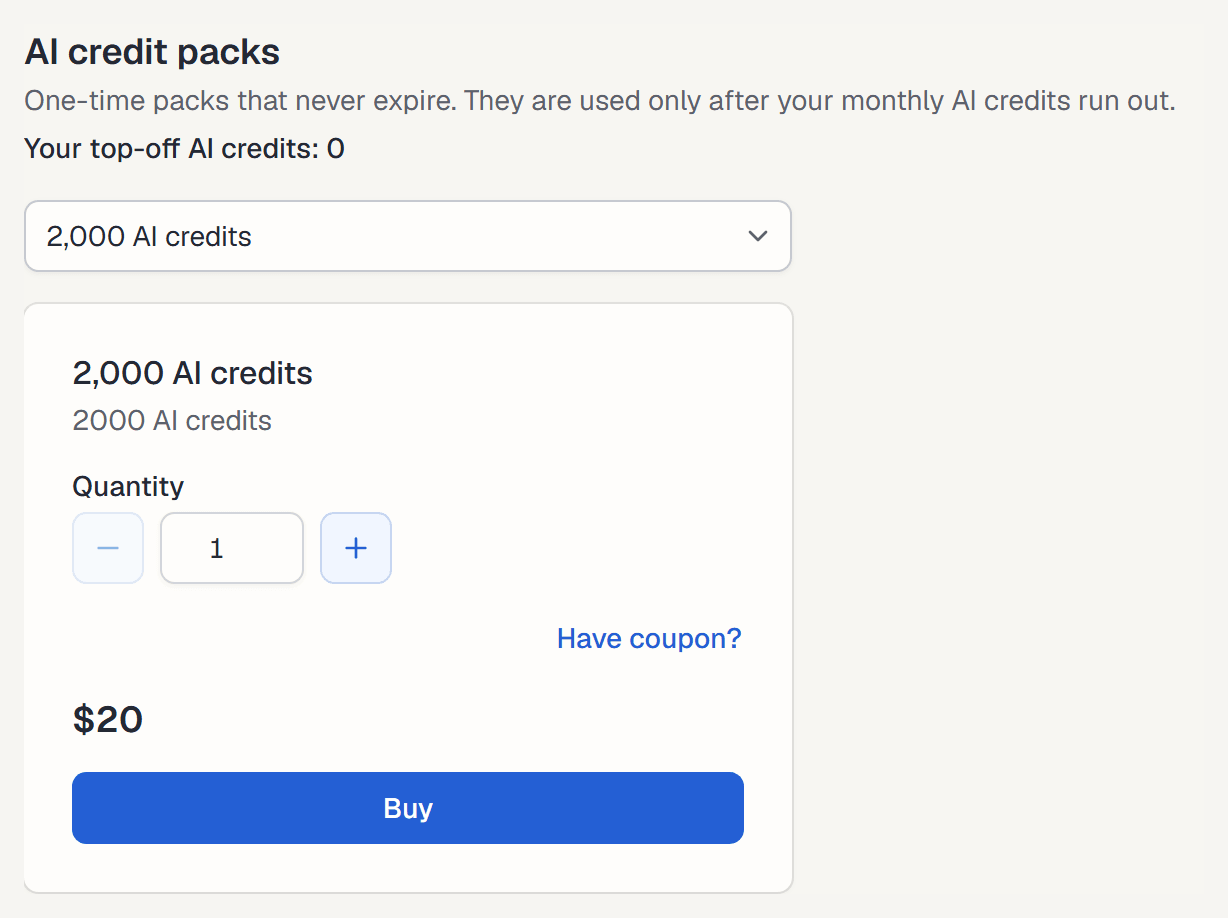
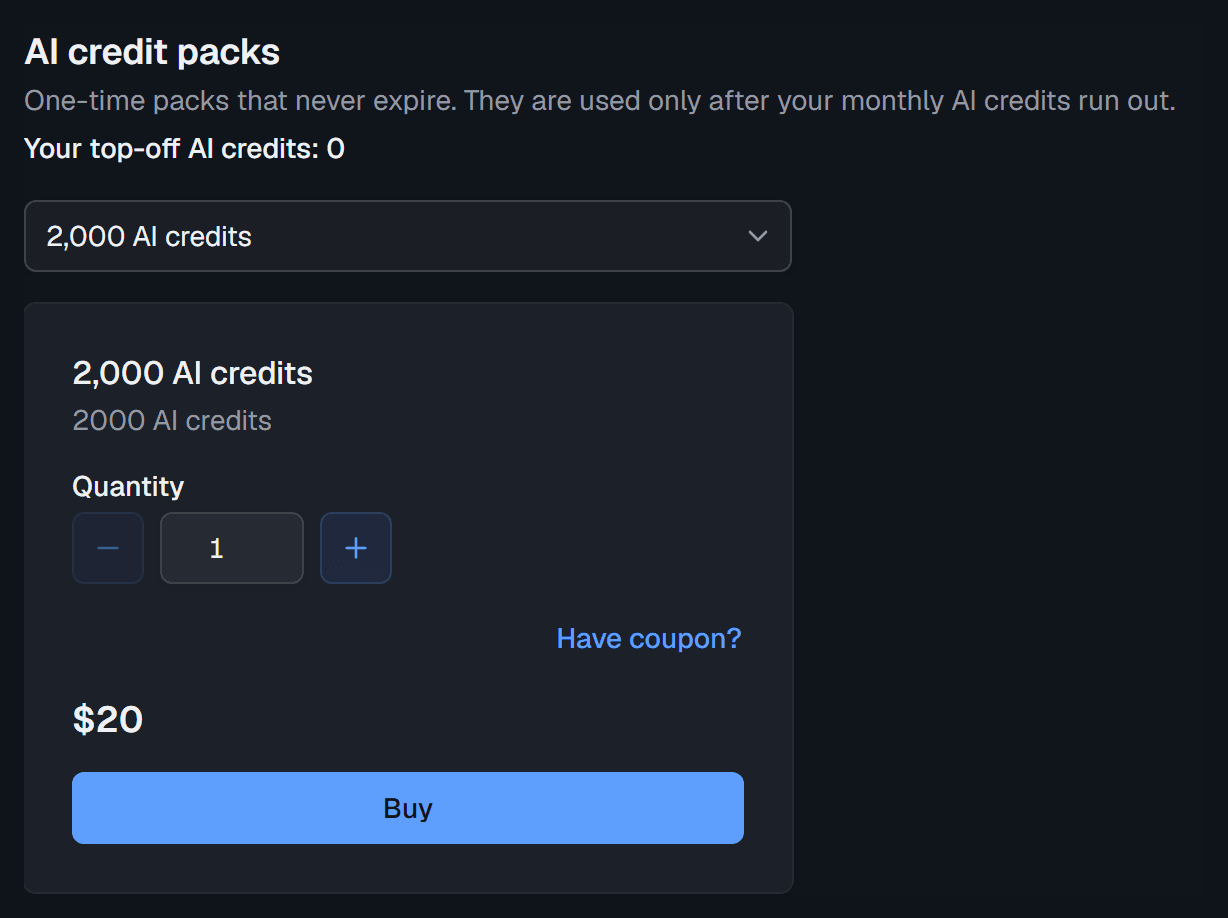
- Open Choose a pack and select a pack. The menu shows how many credits each pack holds and its price.
- Set the Quantity. You can buy up to 10 of the same pack at once.
- If you have a coupon, select Have coupon? and type the code.
- Select Buy. Feedigy opens Stripe’s secure checkout page.
- Pay on the checkout page. Stripe brings you back to the Addons page.
When the payment goes through, the page says AI credits added to your balance and your balance goes up. If the payment is still processing, the page says so. The credits appear as soon as Stripe confirms the payment.
A credit pack does not change your plan or your renewal date. Its receipt is on the Transactions tab of Billing & Usage.
Shortcuts to credit packs
Section titled “Shortcuts to credit packs”When you run low on AI credits, Feedigy shows a Buy AI credits link where you use AI: in Febe AI, AI Studio, the editor’s AI menu, the AI processing settings of an Auto-Publisher, and the AI tools in Media. The link opens this section of the Addons page.
If your plan has unlimited AI credits, the AI credit packs section is hidden.
Add-ons
Section titled “Add-ons”Add-ons raise one limit of your paid plan. They are listed under Paid plan addons, one card per add-on.
On the Free plan, this section says Choose a plan first. Select Upgrade Plan to pick a paid plan, then come back to add capacity.
What you can add
Section titled “What you can add”| Add-on | Raises |
|---|---|
| Feeds | Your feed limit |
| Channels | Your connected channel limit |
| Storage | Your Media Library storage, in MB |
| Auto-Publishers | Your Auto-Publisher limit |
| AI credits | Your monthly AI credits |
| Posting interval | Lets Auto-Publishers post more often, with a shorter minimum interval between posts |
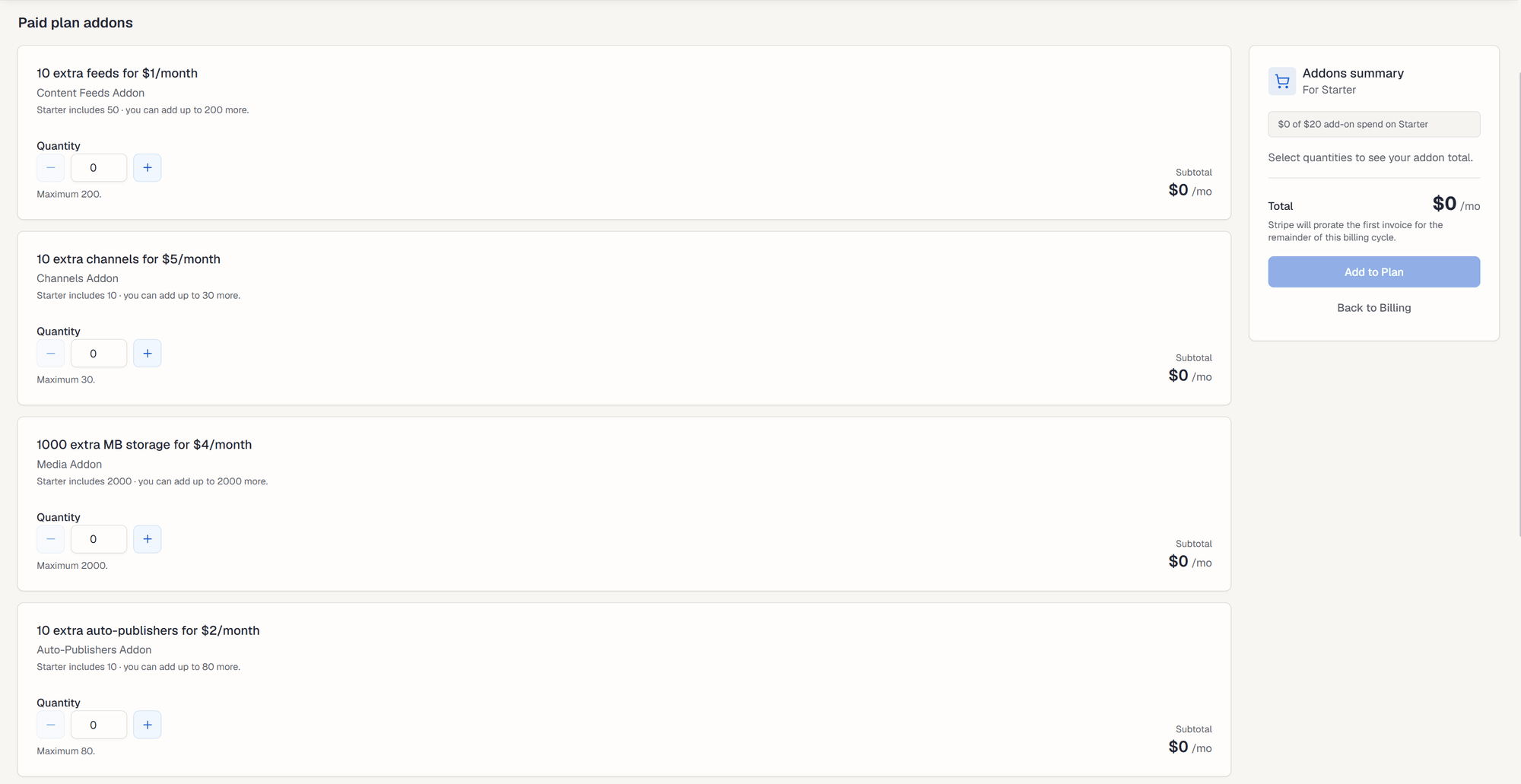
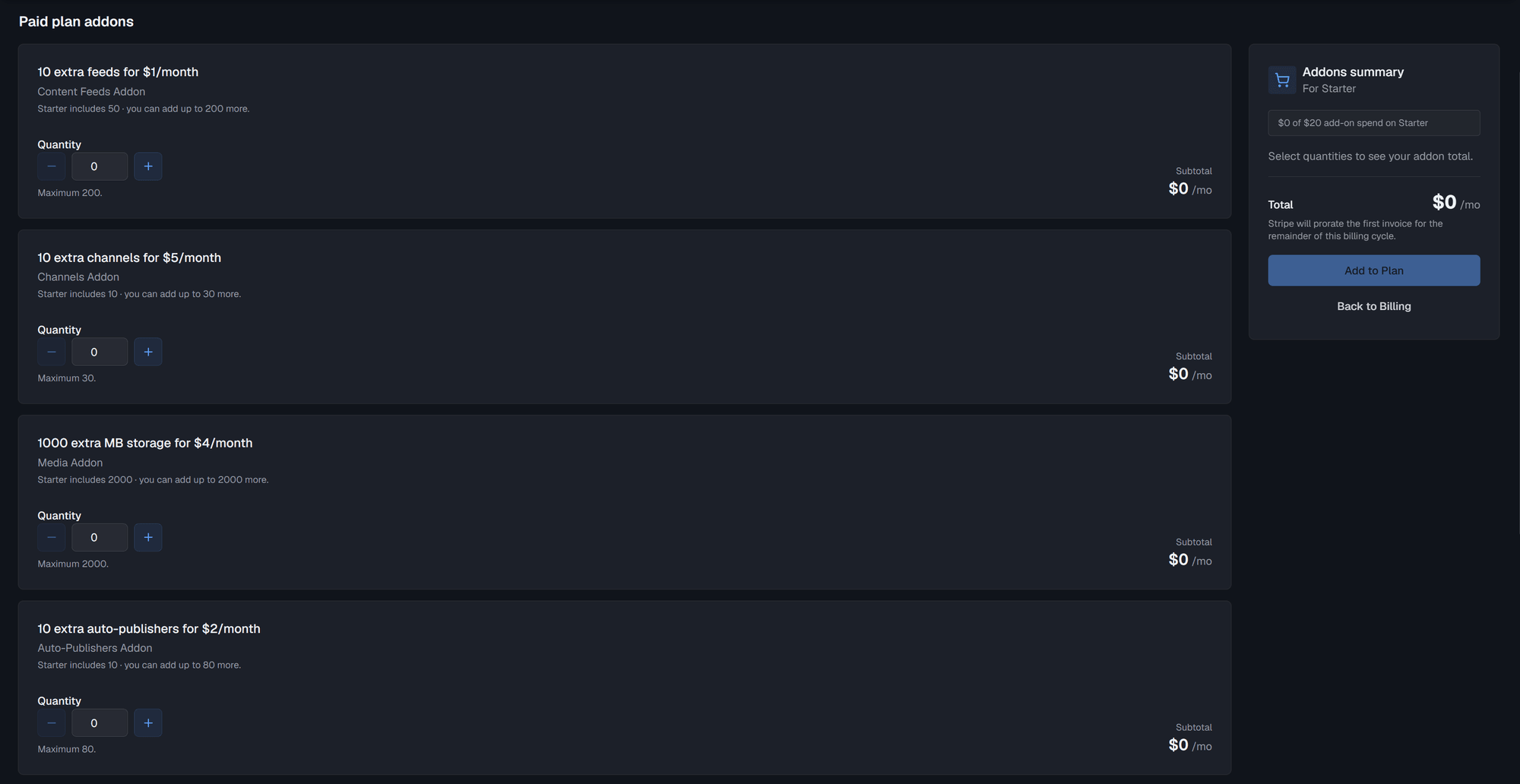
Each card’s title shows what one package adds and what it costs, for example 10 extra feeds for $1/month. The add-ons on offer and their prices depend on your plan and on whether you pay monthly or yearly. An add-on renews with your plan, on the same billing cycle.
Add capacity
Section titled “Add capacity”- On an add-on card, set the Quantity with − and +, or type it. The quantity moves in steps of one package. The Subtotal shows what that card adds to each bill.
- Repeat for any other add-on you need. The Addons summary on the right lists your choices and the Total per month or year.
- Select Add to Plan.
- Check the confirmation window:
- Recurring: what the add-ons add to every bill from now on.
- Charged today: the prorated amount for the rest of your current billing period.
- Payment method: the card Feedigy charges. You can add or change it here.
- Have coupon?: enter an add-on coupon. See Coupons.
- Select Confirm purchase.
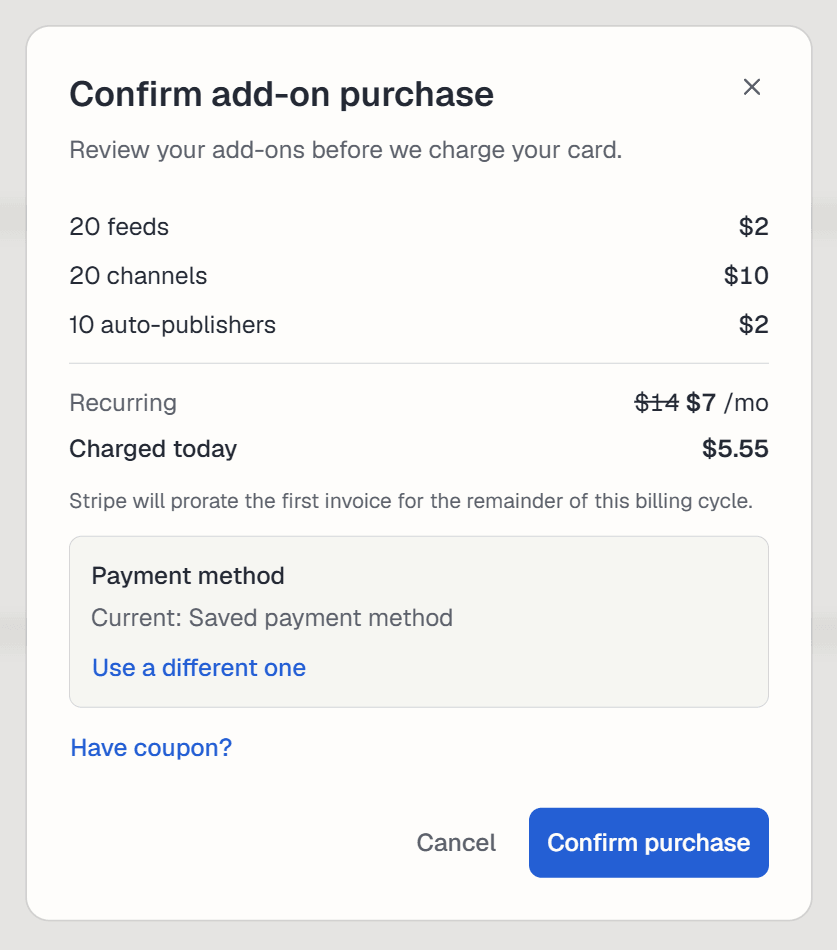
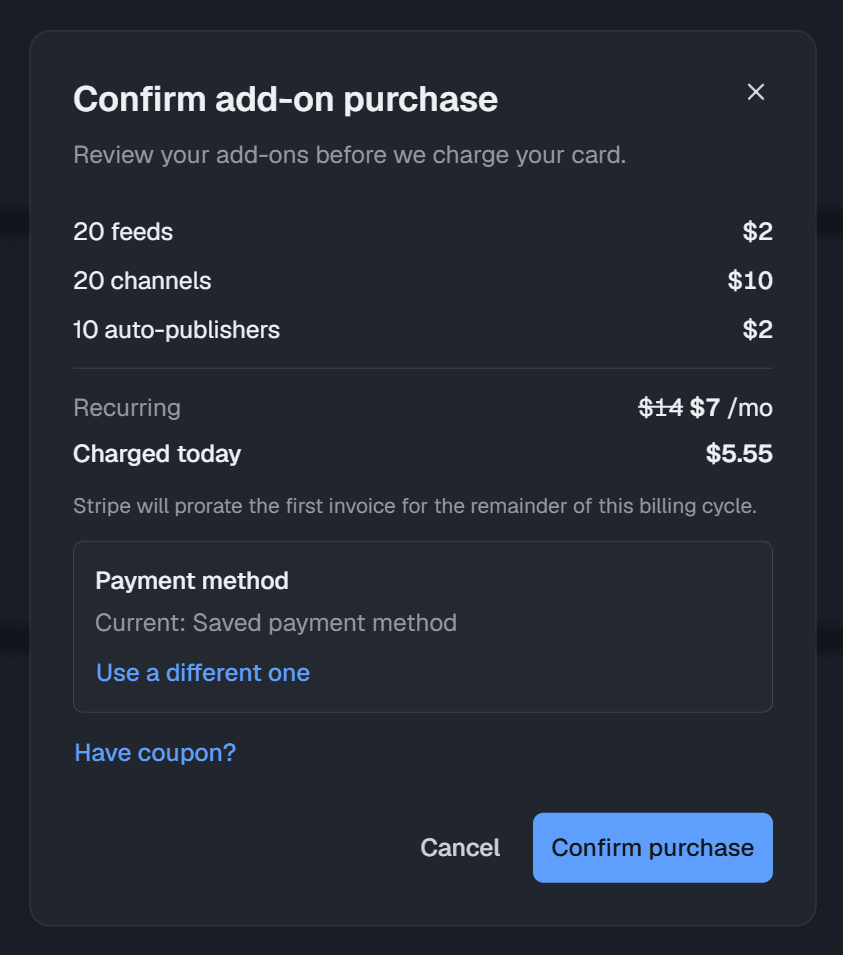
In this example, the add-ons cost $14 a month. A 50% discount on the subscription lowers that to $7, and Charged today is $5.55 because less than a full month is left in the billing period.
The new limits apply right away. Your renewal date does not change. From the next bill, your plan and add-ons are billed together.
Limits on add-ons
Section titled “Limits on add-ons”Add-ons give you room to grow, but past a point the next plan is a better deal. So Feedigy sets two limits:
- A maximum per add-on. Under each card’s title, a line such as Starter includes 10 · you can add up to 30 more shows your plan’s own limit and how much more you can add. Maximum under the quantity says the same in the card’s units. When you reach the maximum, the card shows what the next plan includes and a link to upgrade.
- A cap on total add-on spend. The box at the top of the summary reads, for example, $0 of $20 add-on spend on Starter. By default, the cap is the price difference between your plan and the next plan up. The box turns amber when you get close and red when your choices go over the cap. While you are over it, you cannot add the add-ons: lower a quantity or upgrade instead. The highest plan has no spend cap.
Coupons
Section titled “Coupons”- Add-ons take add-on coupons. A coupon made for plans does not work here, and the window says so.
- A coupon applies only to add-ons you do not have yet. Add-ons you already have keep the price you pay now.
- If your subscription already has a discount, you cannot add another coupon to add-ons. A percentage discount on your subscription applies to add-ons too: the window shows the full price struck through, next to the price you pay.
Remove an add-on
Section titled “Remove an add-on”Open Billing & Usage and select Remove next to the add-on under Purchased add-ons. It leaves your subscription right away, and Feedigy credits the unused time to your account. Account credit goes toward your next invoice.
Before you remove an add-on, check that you use less than your plan’s own limit. For example, if you remove an extra channel while you use it, you are over your channel limit.
When you reach a limit
Section titled “When you reach a limit”If you try to create something past your limit, such as a fourth channel on a plan with three, Feedigy stops and explains which limit you hit. The message offers three ways forward:
- Remove assets lets you delete something you no longer need, to free up room.
- Buy Addons opens the Addons page, to add more of that one thing.
- Upgrade Plan opens the plans page.
Keep posting through busy weeks
Set sources, keywords and posting hours once. Feedigy posts to your channels while you work on other things.
No card required. The Free plan has no time limit.