
eBay feeds
Это содержимое пока не доступно на вашем языке.
An eBay feed is a smart feed of eBay listings. Follow a keyword, or follow the shops of chosen sellers. Each listing becomes a feed item with its title, seller, price and a link to eBay. Use it for deals, collectibles or a seller’s new stock. You need no account.
Create an eBay feed
Section titled “Create an eBay feed”-
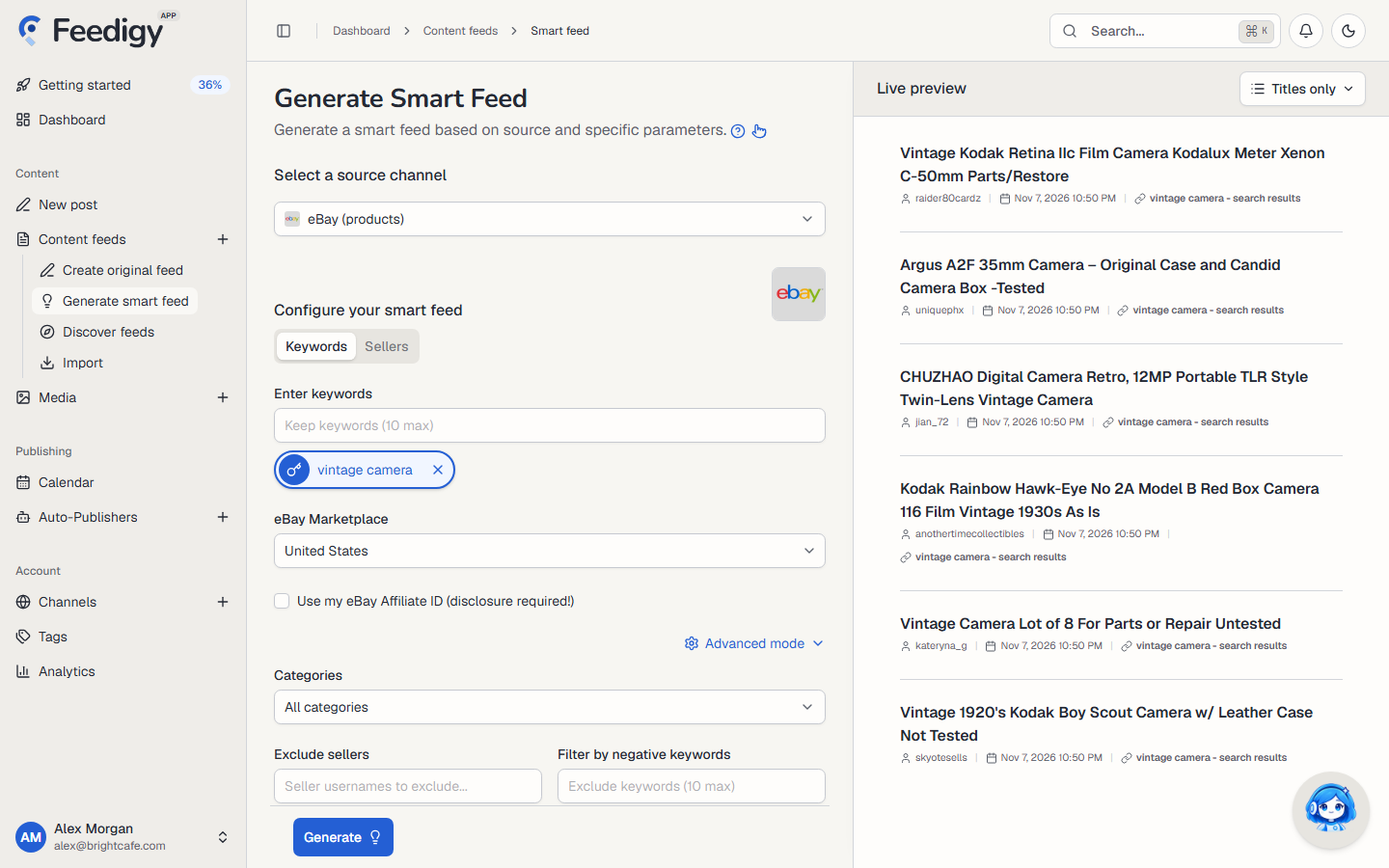
Open Content feeds in the sidebar, then Generate smart feed.
-
In Select a source channel, choose eBay (products).
-
Choose Keywords or Sellers:
- Keywords: type a keyword into Enter keywords and press Enter.
- Sellers: type an eBay seller username into Enter seller names and press Enter.
Add up to 10. Each keyword or seller becomes its own feed. Select one to preview it.
-
Choose the eBay Marketplace, for example United States, United Kingdom or Germany.
-
To earn commission on sales, tick Use my eBay Affiliate ID (see below).
-
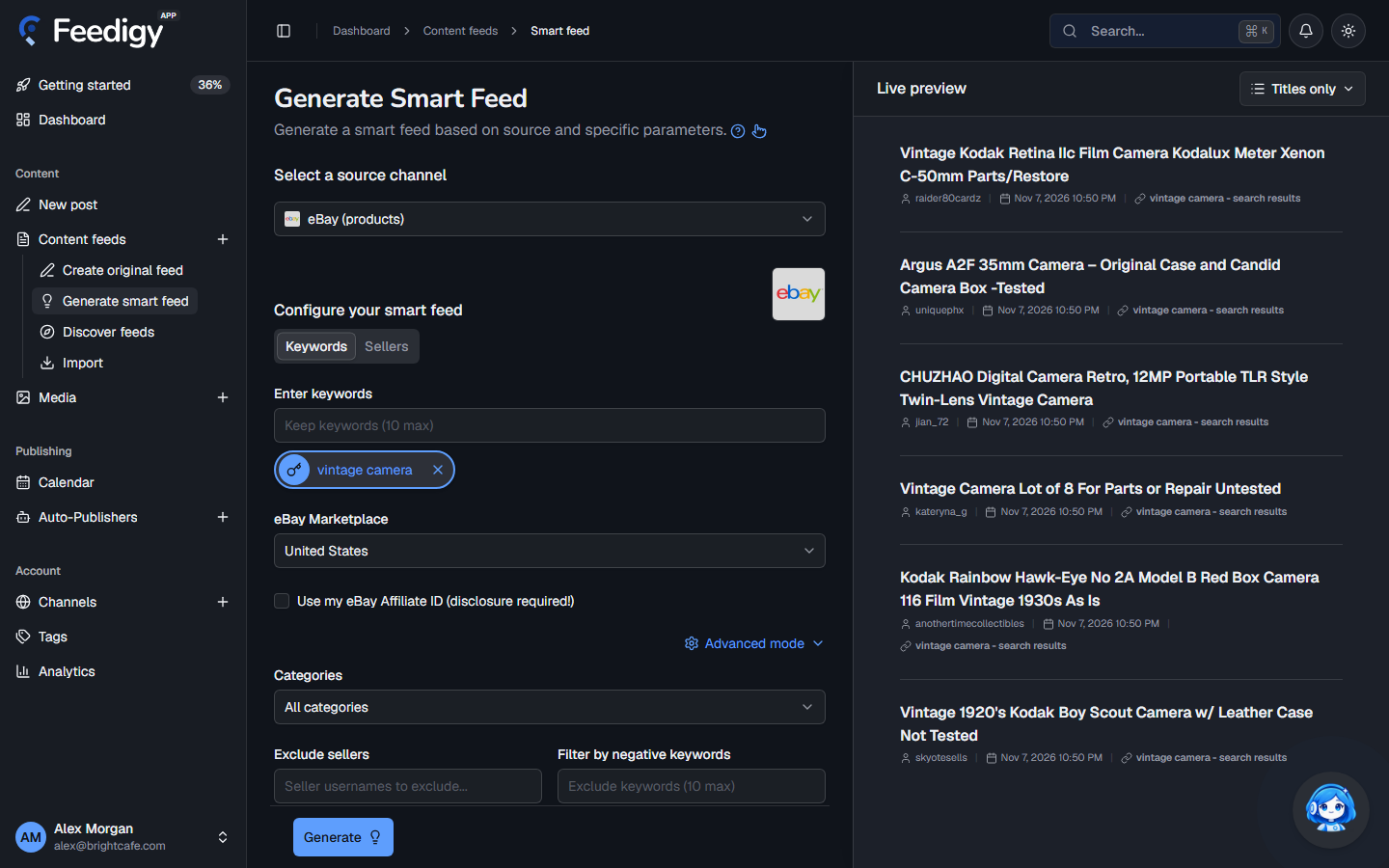
Check the listings in Live preview on the right.
-
Select Generate.
Marketplaces
Section titled “Marketplaces”United States, United Kingdom, Germany, France, Italy, Spain, Australia, Canada, Austria, Belgium (French), Switzerland, Ireland, Malaysia, Netherlands, Philippines, Poland, Singapore, Thailand, Taiwan, Vietnam, Hong Kong and eBay Motors (US).
Use your own affiliate ID
Section titled “Use your own affiliate ID”Tick Use my eBay Affiliate ID (disclosure required!) to add your eBay Partner Network tracking to every listing link.
- Affiliate Campaign ID: your eBay Partner Network campaign ID (
campid). Required when the box is ticked. - Custom ID (SubID): optional. Use it to tell your feeds apart in eBay’s reports.
- Affiliate Disclosure: text added to every item,
#Sponsoredby default. HTML is allowed. Affiliate rules require a disclosure, so clear it only if you add one another way.
Advanced mode
Section titled “Advanced mode”- Categories: search within one eBay category, or All categories. To use a category that is not in the list, enter its ID in Custom category ID.
- Exclude sellers: skip listings from these sellers.
- Filter by keywords: keep only listings that contain one of these words.
- Filter by negative keywords: skip listings that contain any of these words (up to 10).
- Show only items: with free shipping, with return accepted, with credit card accepted or eBay for Charity.
- Show only listings: Buy It Now (fixed price), Auctions or Best Offer.
- Price range: only listings in this price range. Set both ends to the extremes for no limit.
- Condition: Any, New, Used or Unspecified.
- Sort by: Best Match, Price: lowest first, Price: highest first or Time: newly listed.
- Tags: tags for the new feeds. See Tags.
After you generate
Section titled “After you generate”The new feeds appear on the Content Feeds page with the Smart type. Feedigy refreshes an eBay feed at most every 2 hours, when the feed is read. To share the listings on your channels, add the feed to an Auto-Publisher.
Keep posting through busy weeks
Set sources, keywords and posting hours once. Feedigy posts to your channels while you work on other things.
No card required. The Free plan has no time limit.