
AI Studio
Это содержимое пока не доступно на вашем языке.
AI Studio makes images with AI. Describe the image you want, pick a model, and select Generate image. You can also start from one of your images and change it. Every image you make is saved to your Media Library.
Open AI Studio
Section titled “Open AI Studio”- In Media, select Add media, then AI Studio.
- To edit an image, open it in Media with View full, then select Edit in AI Studio.
- You can also open AI Studio from the post editor and from an original feed, to make an image for a post.
Make an image
Section titled “Make an image”- Keep the Images tab. Videos and audio are coming soon.
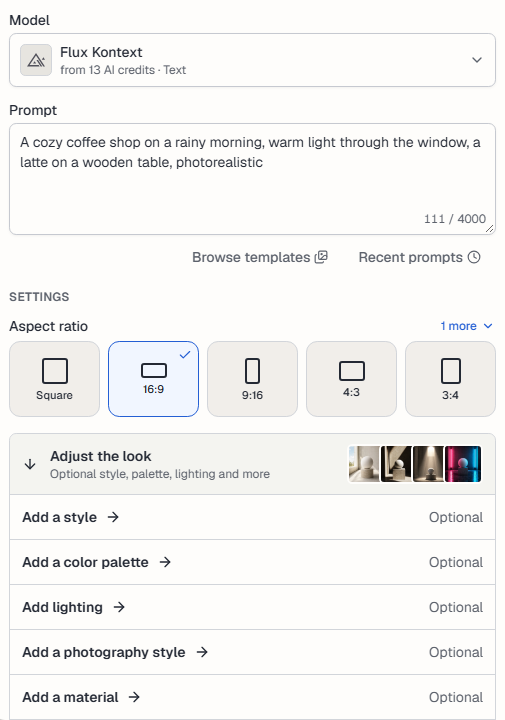
- Choose a Model (see below).
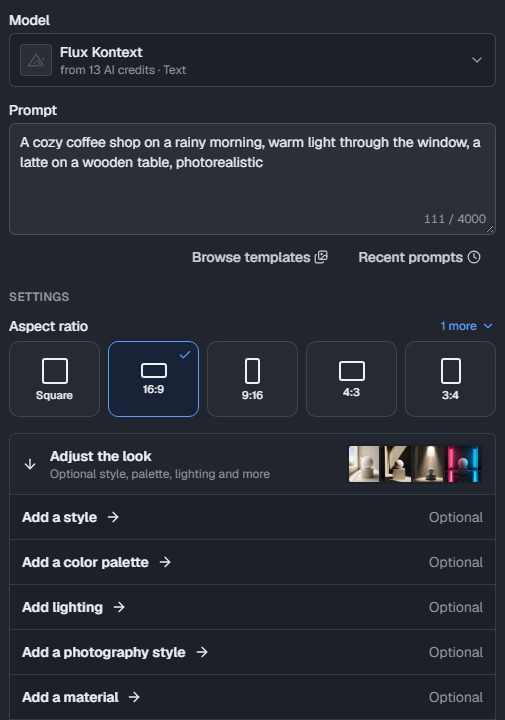
- Describe the image in Prompt, up to 4,000 characters.
- Under Settings, choose the Aspect ratio, for example Square, 16:9 or 9:16. Select more to see the rest. Other settings depend on the model.
- Optionally, open Adjust the look to add a style (see below).
- Select Generate image. The button shows what the image costs in AI credits.
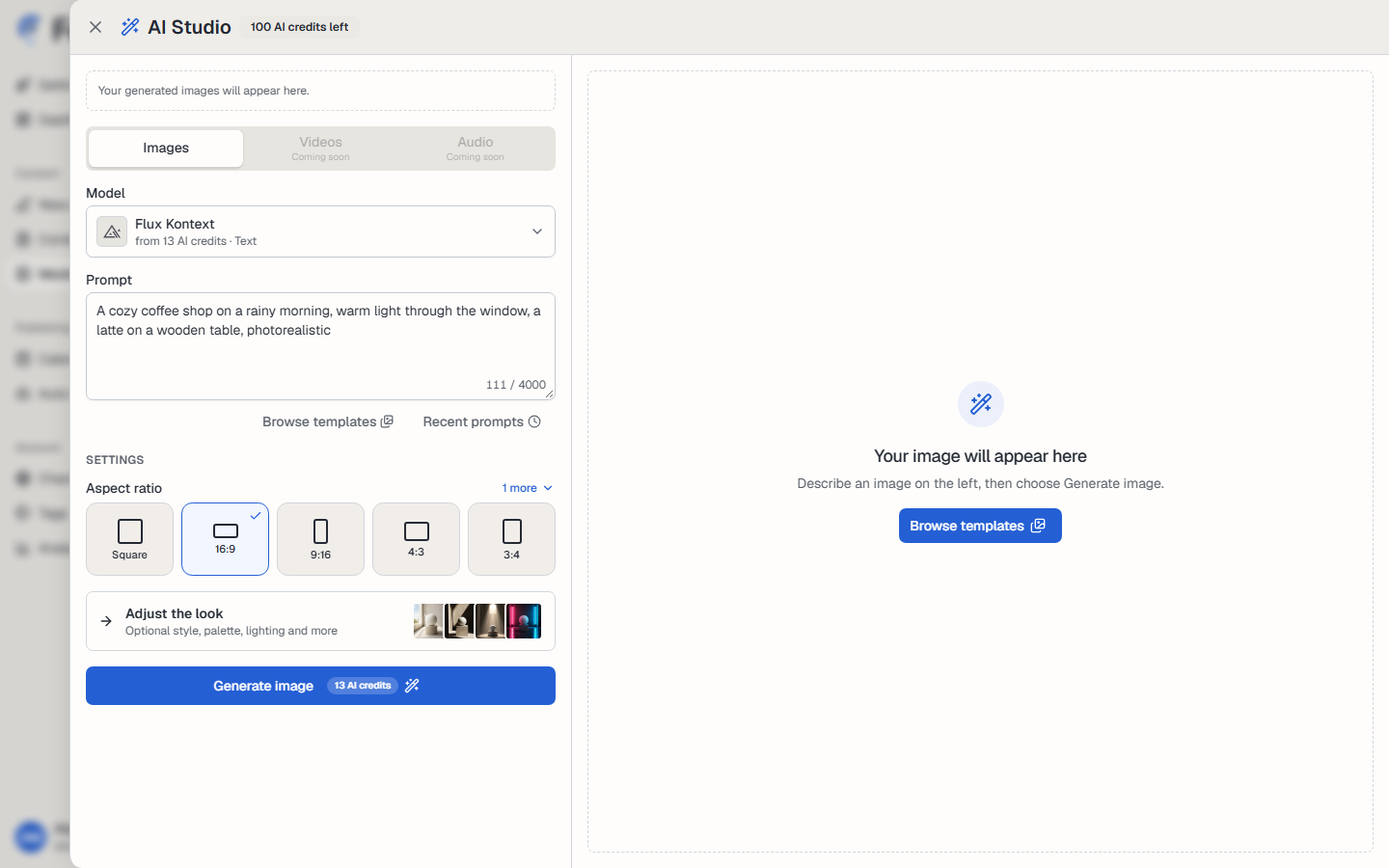
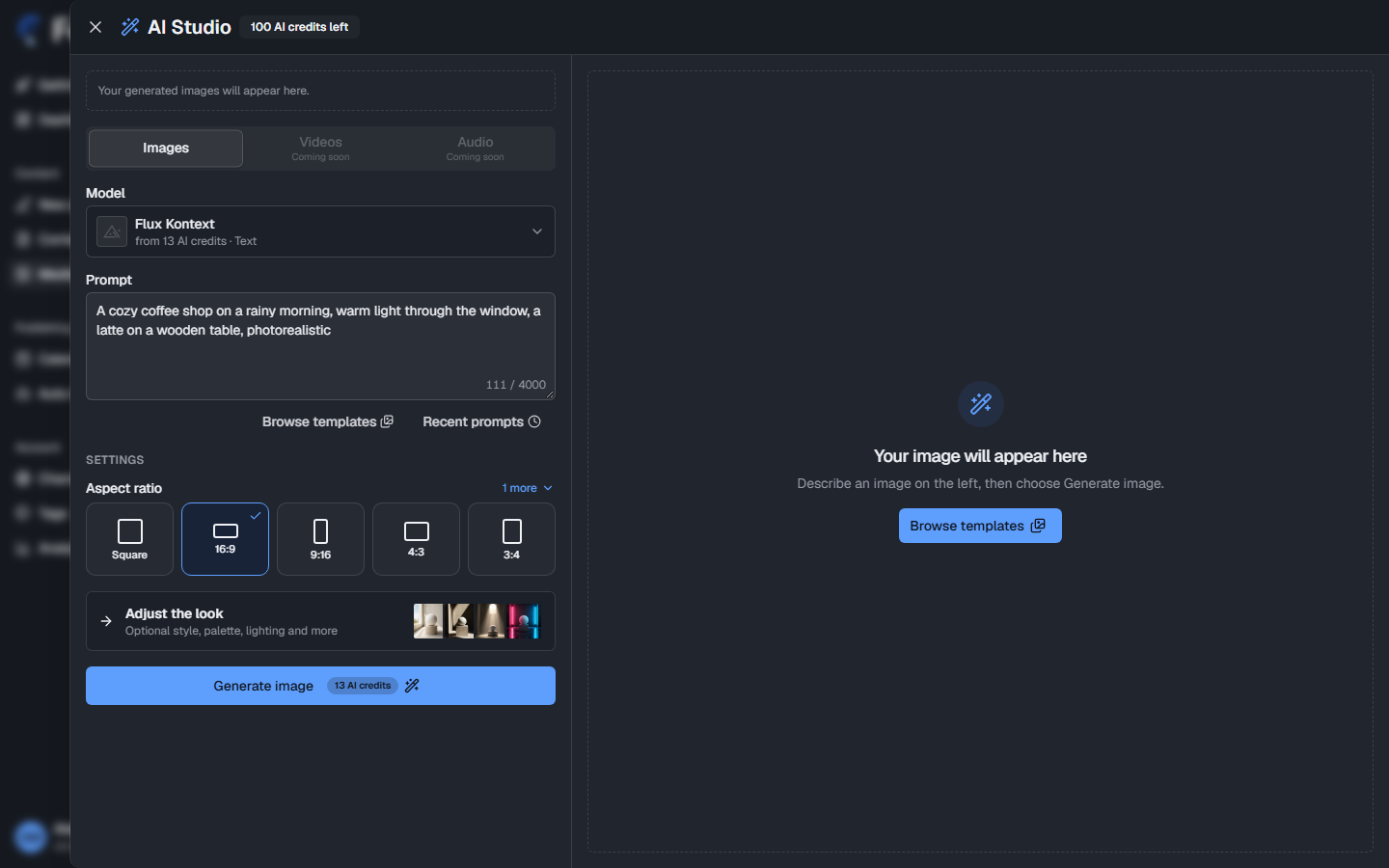
The image appears on the right when it is ready. You can close AI Studio while it works: the image goes to your Media Library when it is done. Then:
- Use: use the image, for example in the post you are writing.
- Regenerate: make another version from the same prompt.
- Edit further: use this image as the source for a new edit.
Your latest images are at the top of AI Studio, under Recent images. Recent prompts lists the prompts you used before, so you can use one again.
Choose a model
Section titled “Choose a model”Open Model to see every model with its price in AI credits and what it accepts:
- Text: makes a new image from your prompt.
- Text & image: also takes one or more source images to edit or combine.
Type in Search to find a model. Select the star to keep a model at the top of the list.
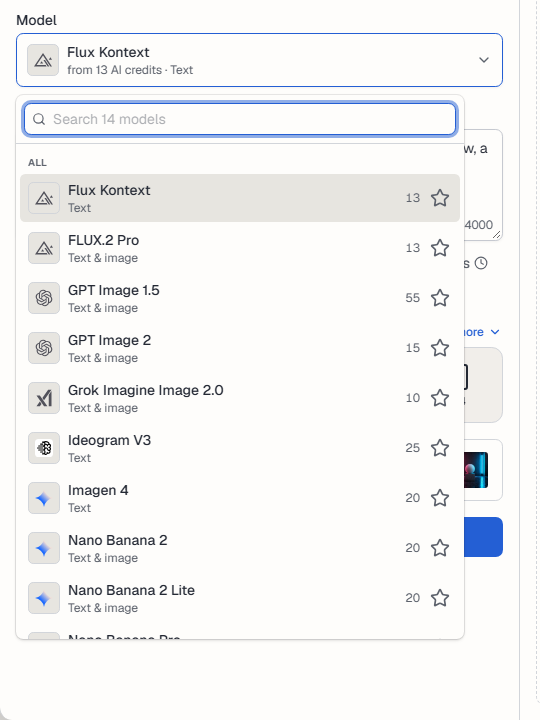
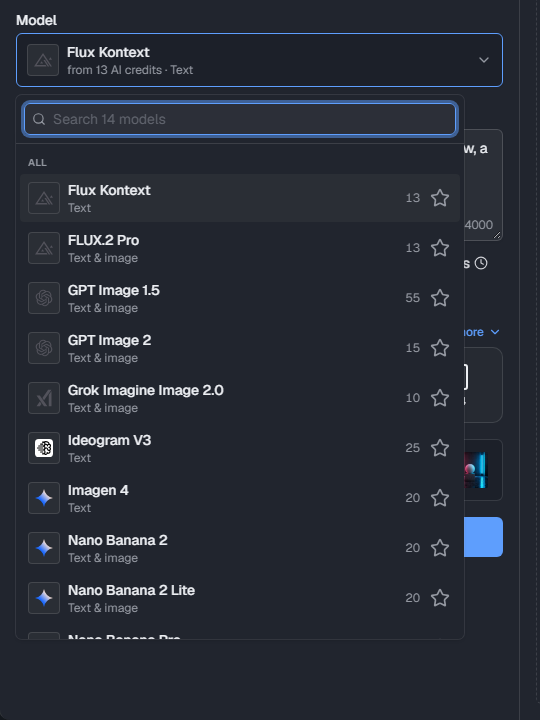
The price can depend on the settings, for example a higher resolution costs more. The Generate image button always shows the price for your current settings.
Edit an image
Section titled “Edit an image”Pick a Text & image model. Source images appears. Drop an image there, select Upload, or select From media library. Some models need a source image, and some accept more than one. Then describe the change in Prompt, for example “make the background a beach at sunset”.
Adjust the look
Section titled “Adjust the look”Adjust the look adds words to your prompt for you. Everything in it is optional.
- Add a style, Add a color palette, Add lighting, Add a photography style, Add a material and Add a medium: pick one option from each group.
- Extra details: Add props puts useful objects that fit the scene into the image. Include branding area keeps clean space for a logo or text. You can also type other details.
Will add to prompt shows the exact text that goes into the prompt.
Start from a template
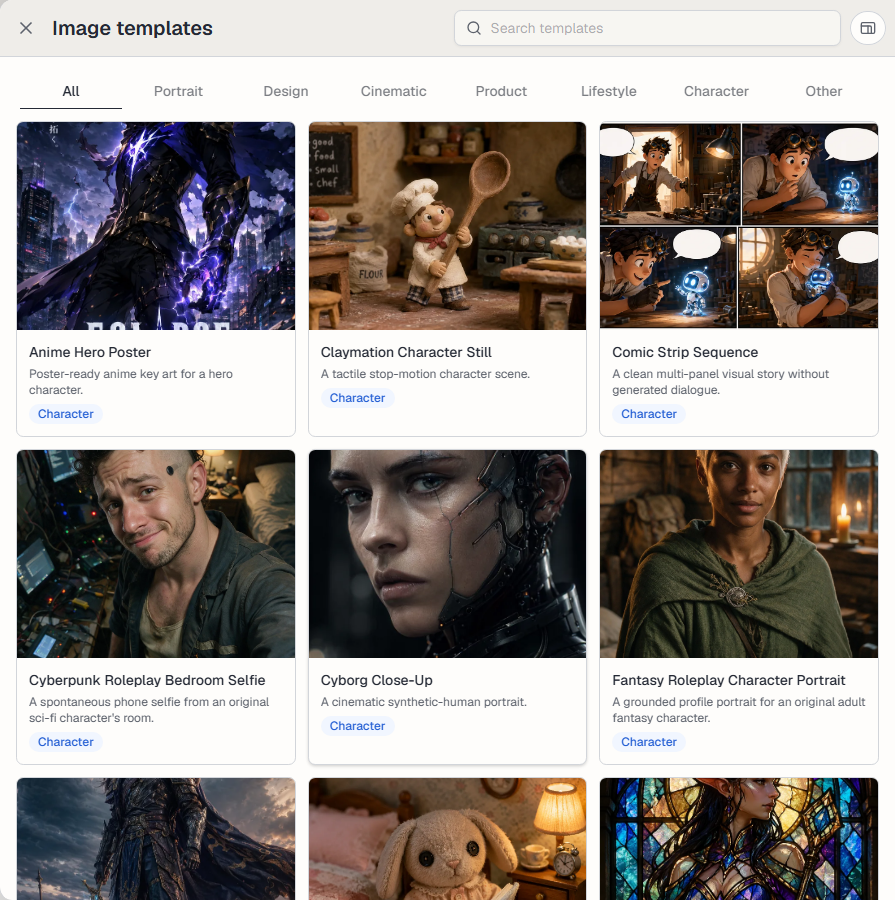
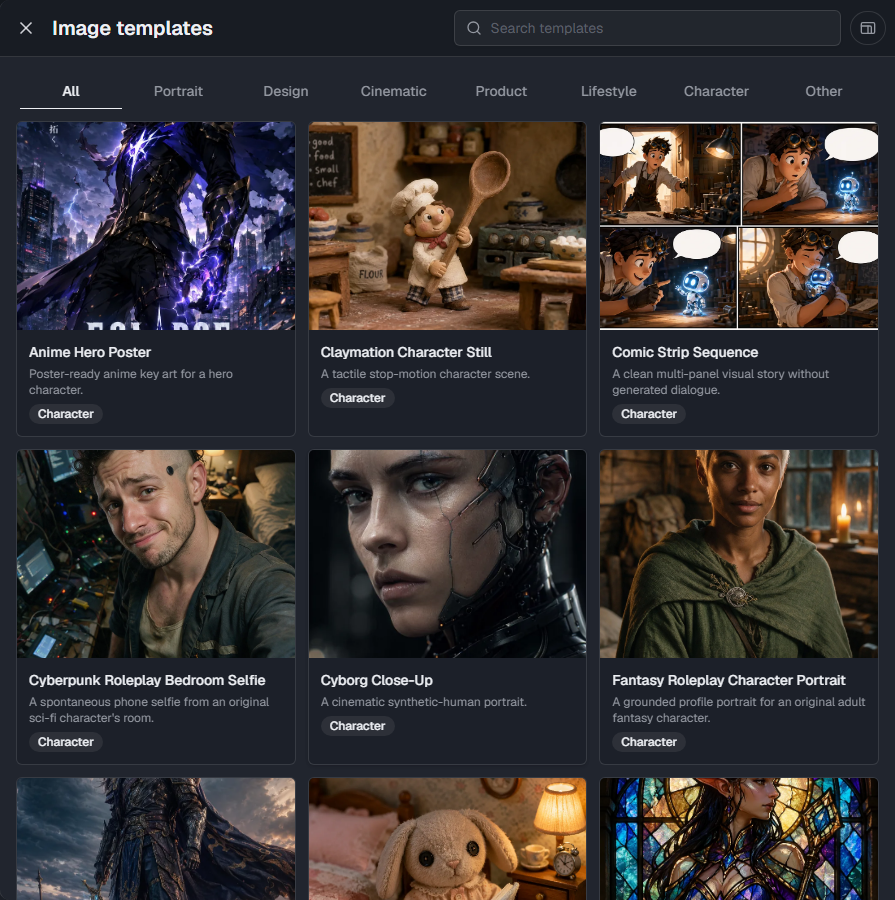
Section titled “Start from a template”Select Browse templates to see ready-made prompts with example images. Filter by Portrait, Design, Cinematic, Product, Lifestyle, Character or Other, or search. Open a template to see its prompt and suggested model, then use it and change the details. Templates marked Needs a source image work only with a source image.
AI credits
Section titled “AI credits”Each image costs AI credits. The badge at the top of AI Studio shows how many you have left. Your plan includes AI credits every month, and you can buy more. See Add-ons and top-offs.
If a generation fails, the credits are not spent. If the price of a model changes while you work, AI Studio shows the new price, and you select Generate image again to accept it.
Keep posting through busy weeks
Set sources, keywords and posting hours once. Feedigy posts to your channels while you work on other things.
No card required. The Free plan has no time limit.